How to Connect Your Interactive Brokers Account to Excel
Manage your Interactive Brokers portfolio like a pro! With SheetsFinance for Excel, you can connect your Interactive Brokers (IBKR) account directly to Microsoft Excel and access all your up-to-date portfolio data in one place. No more manual exports or clunky third-party tools—just your IBKR data flowing seamlessly into your spreadsheets for custom analysis, tracking, and reporting.
Interactive Brokers is one of the most popular brokers for active traders and international investors. Now you can combine IBKR's powerful trading platform with Excel's analytical capabilities to build sophisticated portfolio tracking, risk analysis, and performance monitoring systems.
Interactive Brokers connection details
What we'll cover
- What data you can access from your Interactive Brokers account
- Step-by-step guide to connecting IBKR to Excel
- How to use the
SF_BROKERAGE()function to pull your data - Example use cases and formulas
- Privacy and security information
📊 What Interactive Brokers Data Can You Access?
Once connected, SheetsFinance allows you to pull the following data from your Interactive Brokers account directly into Excel:
- Holdings - Current positions across all asset classes (stocks, options, futures, forex, bonds, etc.) including quantity, cost basis, current value, and P&L
- Orders - Recent orders and their status (filled, pending, cancelled, partially filled)
- Balances - Account balances across all currencies, buying power, margin requirements, and net liquidation value
- Options Positions - Detailed options data including strike, expiration, delta, gamma, theta, vega, and P&L
Interactive Brokers supports multiple asset classes and global markets, so all your positions—whether US stocks, European equities, Asian markets, or derivatives—are accessible through SheetsFinance.
🔐 How to Connect Your Interactive Brokers Account to Excel
Prerequisites
Before you begin, make sure you have:
- A SheetsFinance account with an active brokerage subscription
- SheetsFinance installed in Excel (installation guide)
- Your Interactive Brokers account login credentials
💡 Free Trial: New users get a 15-day free trial of the brokerage features, no payment details required!
Step 1: Purchase or Start Your Brokerage Trial
- Visit the SheetsFinance Pricing Page
- Select a brokerage plan or start your free trial
- Complete the checkout process
Step 2: Connect Interactive Brokers on the SheetsFinance Website
- Log into your SheetsFinance Account Dashboard
- Navigate to the Brokerage tab
- Click Connect under "Create New Connection"
- Search for and select Interactive Brokers from the list of brokers
- You'll be redirected to Interactive Brokers' secure login page
- Enter your IBKR username and password
- Authorise SheetsFinance and our brokerage connections provider SnapTrade to access your account data (read-only)
- Complete any security device authentication if required
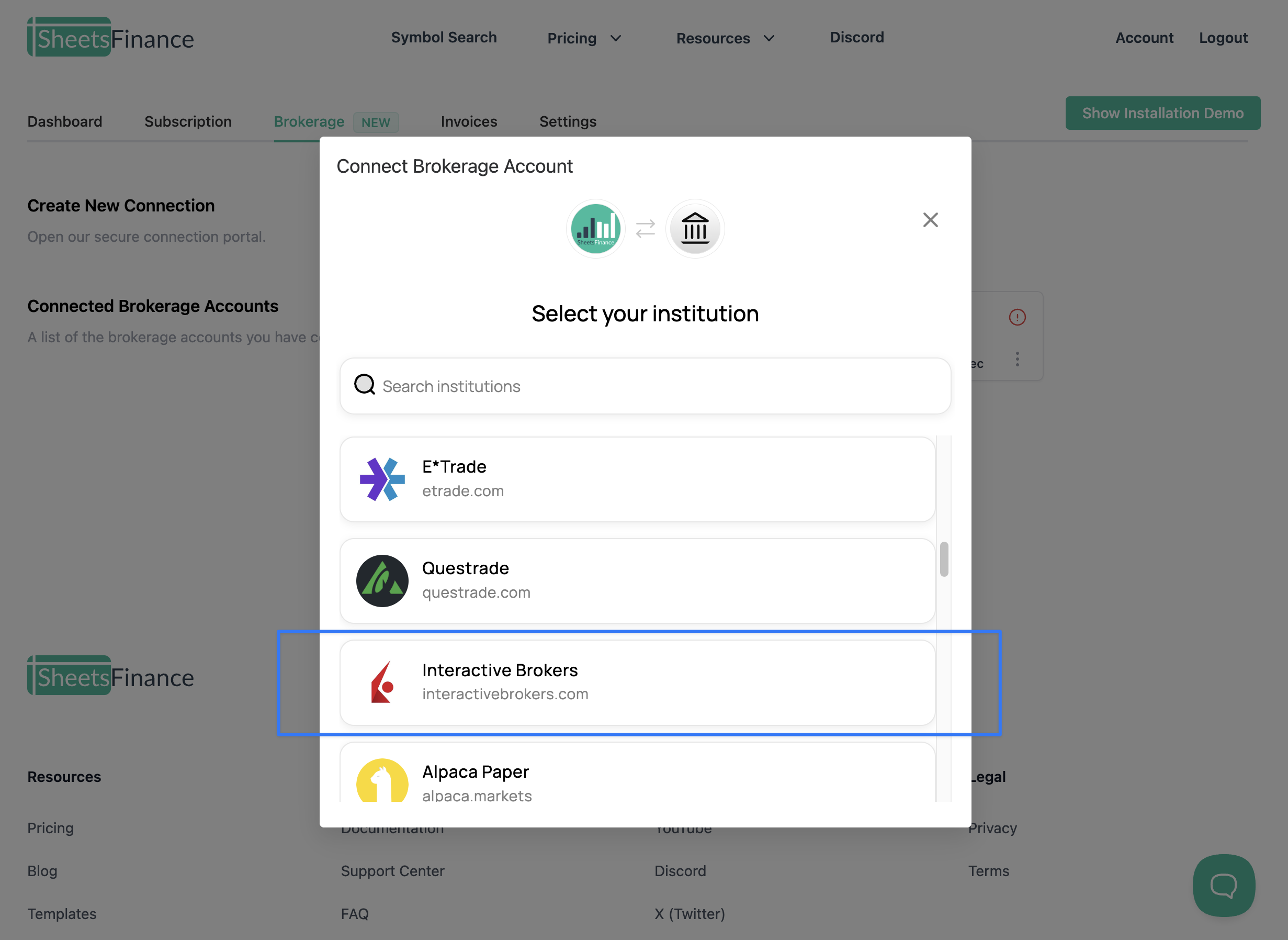
📝 Note: If you have multiple IBKR accounts (e.g., individual account, IRA, margin account), you may be prompted to select which account(s) to connect.
Once connected, you'll see your Interactive Brokers account listed in your Connected Brokerage Accounts section.
Step 3: Set a Nickname for Your Interactive Brokers Account
An account nickname is a custom label you assign to your Interactive Brokers account connection. This nickname is used in Excel formulas to reference your account when pulling data.
SheetsFinance will set a default nickname based on the institution name, in this case, "interactive_brokers". If you have multiple Interactive Brokers accounts then the default nicknames will begin with the institution name, in this case "interactive_brokers", and end with a unique identifier (e.g., "interactive_brokers_1234"). You can keep the default nicknames or customise them to something more descriptive. This does not affect the connection in any way, it's just a label for your reference in Excel.
💡 Tip: If you have multiple Interactive Brokers accounts, use descriptive nicknames like "ibkr_individual" and "ibkr_ira" to keep them organised.
Customise your account nicknames on our website:
- In the Brokerage tab of your account dashboard, find your Interactive Brokers connection
- Click Edit Nickname
- Enter a custom nickname (e.g., "ibkr", "ibkr_main", "ibkr_ira", etc.)
- Click Save
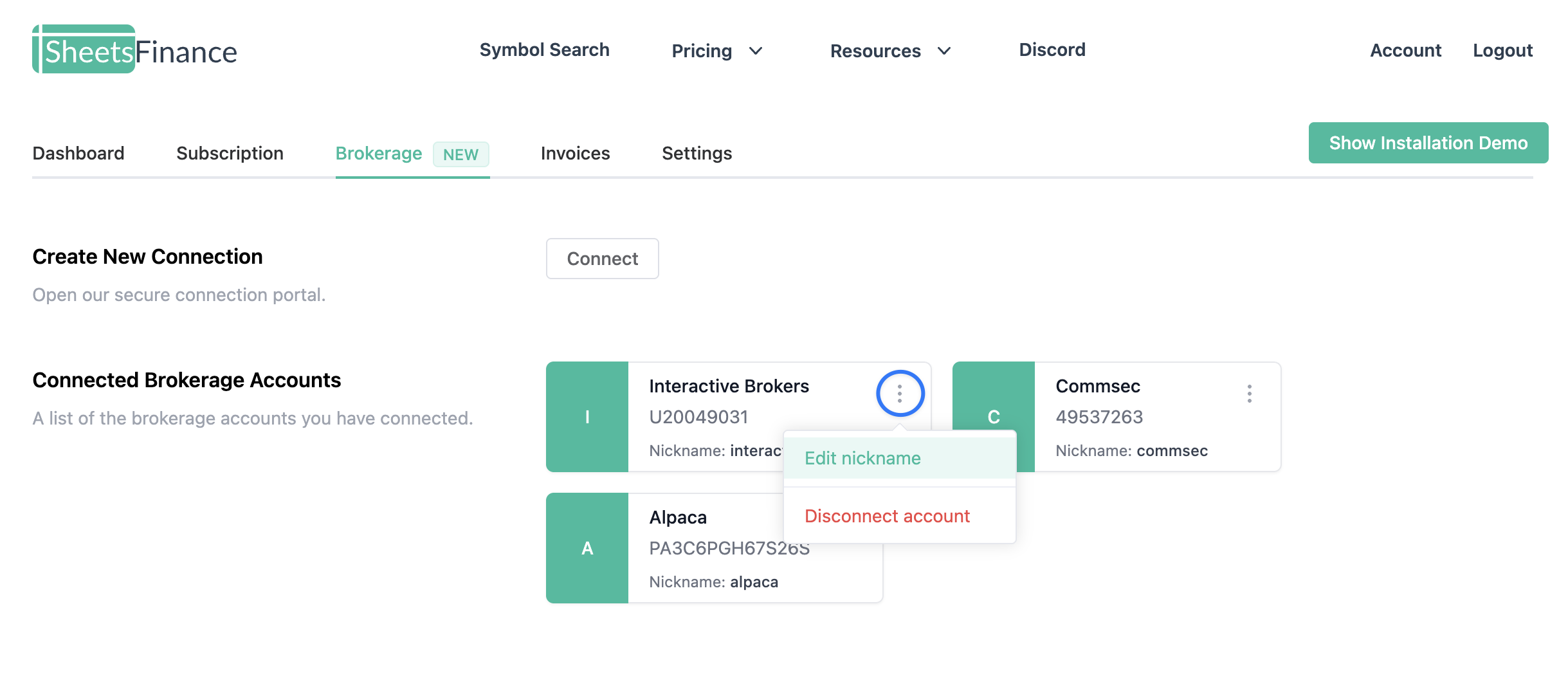
You can also customise your account nicknames directly from Excel. All you need to do is:
- Click the SheetsFinance button in the ribbon menu
- Open the sidebar and navigate to Brokerage
- Find your Interactive Brokers account and click the pencil icon to edit the nickname
- Enter your desired nickname and save
Step 4: Connect to SheetsFinance from Excel
- Open Microsoft Excel
- Make sure SheetsFinance is installed and connected to your account
- Click the SheetsFinance button in the ribbon menu
- Enter your SheetsFinance Connection ID (found in your account dashboard)
- Click Connect
- Once connected navigate to the Brokerage tab in the SheetsFinance sidebar where you'll see your Interactive Brokers account(s) listed
📈 Using the SF_BROKERAGE() Function
Now that your Interactive Brokers account is connected and SheetsFinance is installed, you can start pulling data into Excel using the SF_BROKERAGE() function.
📚 Jump to the docs: For all the detail on how to use the
SF_BROKERAGE()function head to our docs
⏰ End-of-day Only: Our Interactive Brokers integration is currently end-of-day only, meaning that the data will update once per day after the market close.
Basic Syntax
=SF_BROKERAGE(account_nickname, type, [metrics], [start_date], [end_date], [transaction_types])Example 1: Get Your Current Holdings
To pull all your Interactive Brokers holdings/portfolio positions across all supported asset classes (except options), use the "holdings" type:
=SF_BROKERAGE("ibkr", "holdings")This returns a table with all your positions including:
- Symbol/Contract
- Asset class (Stock, Option, Future, Forex, etc.)
- Quantity
- Average cost
- Current price
- Market value
- Unrealized P&L
- Currency
- Exchange
- And more!
🤔 Where are my options positions? These are handled separately under the
"optionsPositions"type, keep reading to learn more.
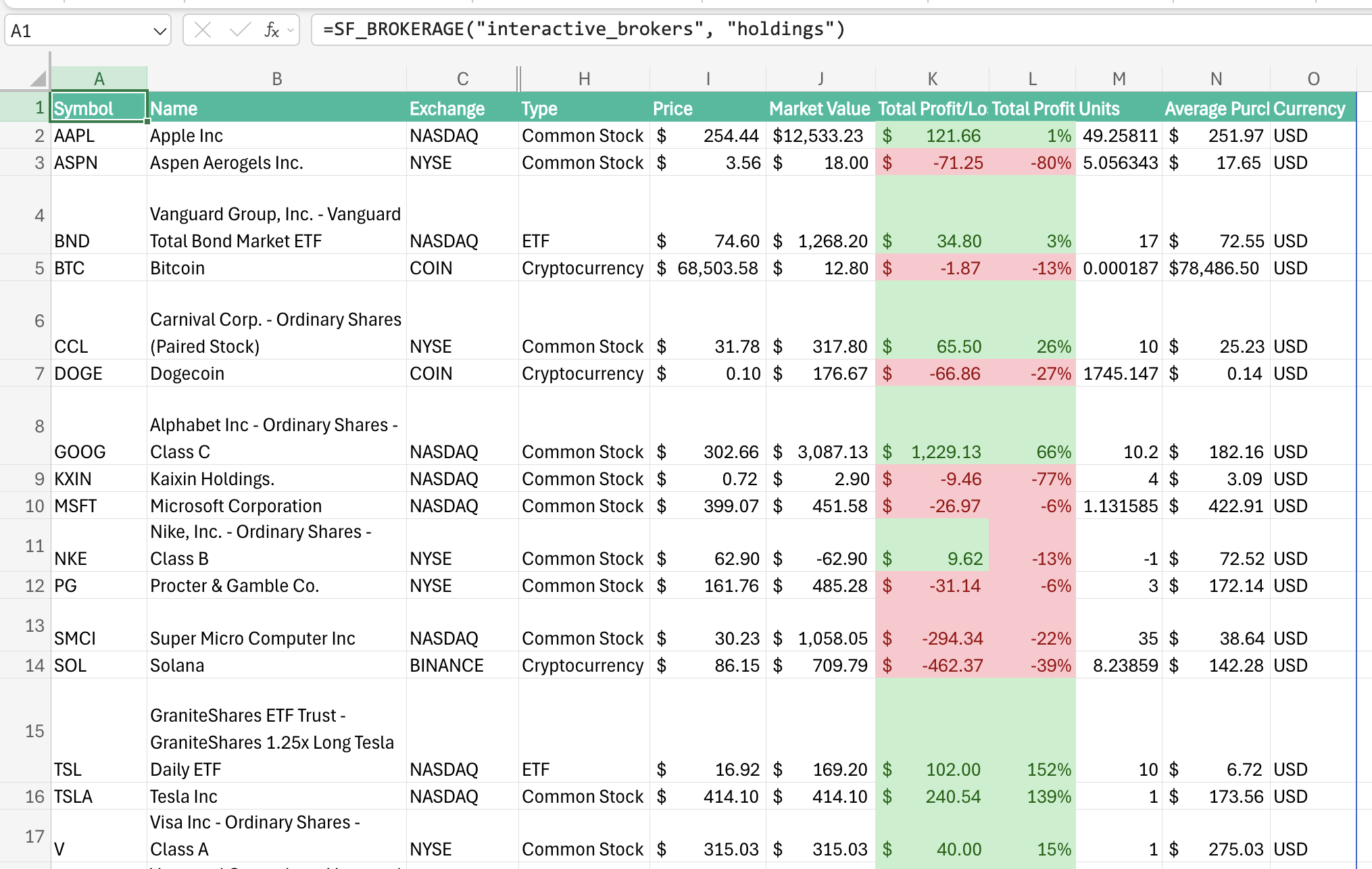
Example 2: Get Specific Holding Metrics
As with all SF functions, you can use the & operator to chain together multiple metrics. This allows you to filter down to exactly that data you're after. For example, to show only symbol, units, and market value you can do the following:
=SF_BROKERAGE("ibkr", "holdings", "symbol&quantity&marketValue")Example 3: Check Your Account Balances
You can pull in your account balances including cash and buying power with the "balances" type:
=SF_BROKERAGE("ibkr", "balances")This shows your:
- Cash balances (per currency)
- Buying power
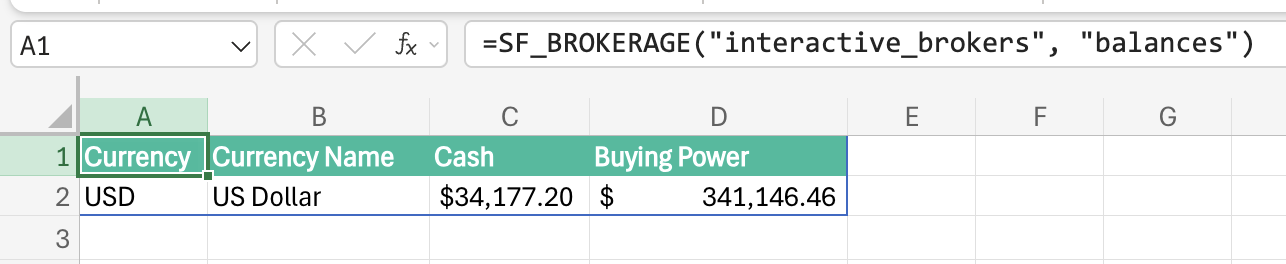
Example 4: View Recent Orders
The "orders" type allows you to see your recent orders and their status:
=SF_BROKERAGE("ibkr", "orders")See your order history including:
- Order type (market, limit, stop, etc.)
- Status (filled, pending, cancelled, etc.)
- Fill price and quantity
- Timestamps
- And more!
Example 5: View Options Positions
Last but not least, you can also access your options positions with the "optionsPositions" type. This is separate from the regular holdings data as options have unique attributes that need to be handled differently. To pull your options positions, use the following formula:
=SF_BROKERAGE("ibkr", "optionsPositions")This returns detailed options data including:
- Underlying symbol
- Option type (call/put)
- Strike price
- Expiration date
- P&L metrics
- And more!

💡 Practical Use Cases
1. Multi-Currency Portfolio Dashboard
Interactive Brokers supports trading in multiple currencies. Create a dashboard showing:
- Total portfolio value in base currency
- Holdings grouped by currency
- FX exposure analysis
- Currency-adjusted P&L
2. Global Asset Allocation
Track your positions across global markets:
- US equities
- European stocks
- Asian markets
- Emerging markets
- Fixed income
- Commodities
- Forex positions
3. Margin and Risk Monitoring
Use balance data to monitor:
- Current margin usage
- Available buying power
- Excess liquidity
- Margin requirements by position
- Risk concentration alerts
4. Options Portfolio Greeks Analysis
For options traders, build spreadsheets that:
- Calculate total portfolio delta
- Monitor theta decay
- Track vega exposure to volatility
- Analyze gamma risk
- Project P&L scenarios
5. Commission and Fee Analysis
Track trading costs:
- Total commissions paid by period
- Commission per trade
- Average commission per share
- Fee analysis by exchange
- Cost comparison over time
6. Algorithmic Trading Performance
If you run algorithmic strategies on IBKR:
- Track strategy performance by symbol
- Calculate win/loss ratios
- Analyze entry/exit quality
- Monitor slippage and execution quality
- Compare actual vs expected returns
🔒 Privacy & Security
We take the security and privacy of your Interactive Brokers data very seriously. There are two classes of data associated with your brokerage connection:
- Brokerage Data: This is the data that is pulled in from your brokerage account(s) into Google Sheets and/or Excel.
- Brokerage Credentials: Randomised tokens that are used to authenticate your brokerage account(s) with SheetsFinance.
SheetsFinance does the following to ensure the security of your data:
- User data belongs to the user: Your Interactive Brokers brokerage data is your own, we do not touch it without your explicit permission. Only you have access to your brokerage data.
- No Long-term Brokerage Data Storage: We do not store any of your Interactive Brokers brokerage data in databases on our servers. The only storage medium is temporary caching in-memory whilst actively using the data in Google Sheets and/or Excel, this is to ensure best performance.
- Encrypted Brokerage Credentials: Your Interactive Brokers brokerage credentials are encrypted, stored securely and regularly rotated. Your brokerage credentials are only valid for the server-to-server connection between SheetsFinance and brokerage providers and are useless outside of this context.
- Complete Disconnection: If you remove a brokerage connection or your entire brokerage subscription, all brokerage credentials become invalid for future use. Entirely new credentials are generated if you reconnect your Interactive Brokers brokerage account(s).
- Read-Only Access: SheetsFinance has read-only access to your Interactive Brokers brokerage data. We do not have the ability to execute trades or make any changes to your Interactive Brokers brokerage account(s).
📚 Additional Resources
- Brokerage Documentation - Complete guide to brokerage connections
- SF_BROKERAGE Function Reference - Detailed function documentation
- Supported Brokers - Full list of supported brokerage firms
- Excel Installation Guide - How to install SheetsFinance in Excel
🎯 Get Started Today
Ready to connect your Interactive Brokers account to Excel?
- Sign up for SheetsFinance (15-day free trial)
- Start your brokerage trial
- Connect your Interactive Brokers account
- Start analyzing your global portfolio in Excel!
Interactive Brokers users deserve sophisticated analytical tools. SheetsFinance brings your IBKR data into Excel where you can build the custom analysis and monitoring systems you need.
If you have any questions or need assistance, our support team is here to help.
Happy trading! 🌍📊