How to Get Historical Options Data for Backtesting: 20+ Years, Including Expired Contracts
If you need historical options data for backtesting, the difficult part is rarely finding today's chain. It is reconstructing the options market as it looked on a specific date, including contracts that have since expired.
With SheetsFinance Options, you can access 20+ years of historical options data, including expired contracts and backfilled Greeks, directly in Google Sheets and Microsoft Excel using SF_OPTIONS_PRO().
You can use it to:
- Reconstruct a full calls-and-puts chain on a past trade date
- Retrieve contracts after they have expired
- Pull bid, ask, midpoint, volume, open interest, IV, and Greeks
- Follow one contract or both sides of a strike over a historical date range
- Build repeatable options research and backtesting workflows in a spreadsheet
Start a 15-day free trial of SheetsFinance Options (no payment details required) to follow the examples in this guide. An active Options subscription is required for historical chain and contract data.
Why Historical Options Data Is Hard to Backtest
A stock has one continuous price series. Options do not.
Every underlying can have thousands of contracts, each defined by its expiration date, strike, and type. Contracts continually appear, change in value, and eventually expire. Once they disappear from a current options chain, a current-data feed is no longer enough to answer questions such as:
- Which contracts were available on the day a trade signal occurred?
- What did the bid-ask spread look like at the time?
- Which strike was closest to a target delta?
- What were the contract's implied volatility and Greeks?
- How did that exact contract behave between entry and exit?
A useful backtest therefore needs two different views of the market:
- A point-in-time chain snapshot to select a contract using only information available on the decision date.
- A contract or strike time-series to follow the selected option through the intended holding period.
SheetsFinance supports both views through one function.
The SF_OPTIONS_PRO() Function
The function signature is:
=SF_OPTIONS_PRO(symbol, dataType, expirationDate, strike, tradeDate, endDate, metrics, options)For historical chain research, the most important arguments are:
| Argument | What it controls |
|---|---|
symbol |
The underlying ticker or a specific OCC option symbol |
dataType |
calls, puts, or calls&puts for chain data |
expirationDate |
The expiration you want to study, including an expiration that has already passed |
strike |
Leave blank for a full chain or enter a strike for a specific contract or strike series |
tradeDate |
The historical date on which you want to view the market |
endDate |
The end of a contract or strike time-series |
metrics |
The fields returned to the spreadsheet |
options |
Filters, ordering, change calculation, and grouping settings |
The distinction between expirationDate and tradeDate is important:
- Expiration date identifies the group of contracts.
- Trade date tells SheetsFinance when to take the historical snapshot.
For example, you might inspect the options expiring January 17, 2025 as they appeared on December 2, 2024. Even though both dates have passed, the chain remains available for historical research.
1. Retrieve a Full Historical Chain, Including Expired Contracts
To return the complete AAPL calls-and-puts chain for the January 17, 2025 expiration as it stood on December 2, 2024, use:
=SF_OPTIONS_PRO("AAPL", "calls&puts", "2025-01-17", "", "2024-12-02")The empty strike argument tells the function to return all strikes in the chain. Because tradeDate is populated, the result is a historical point-in-time snapshot rather than today's chain.
This is useful when your strategy needs to choose a contract based on information such as:
- Distance from the underlying price
- Delta or another Greek
- Implied volatility
- Volume and open interest
- Bid-ask spread
- Days to expiration
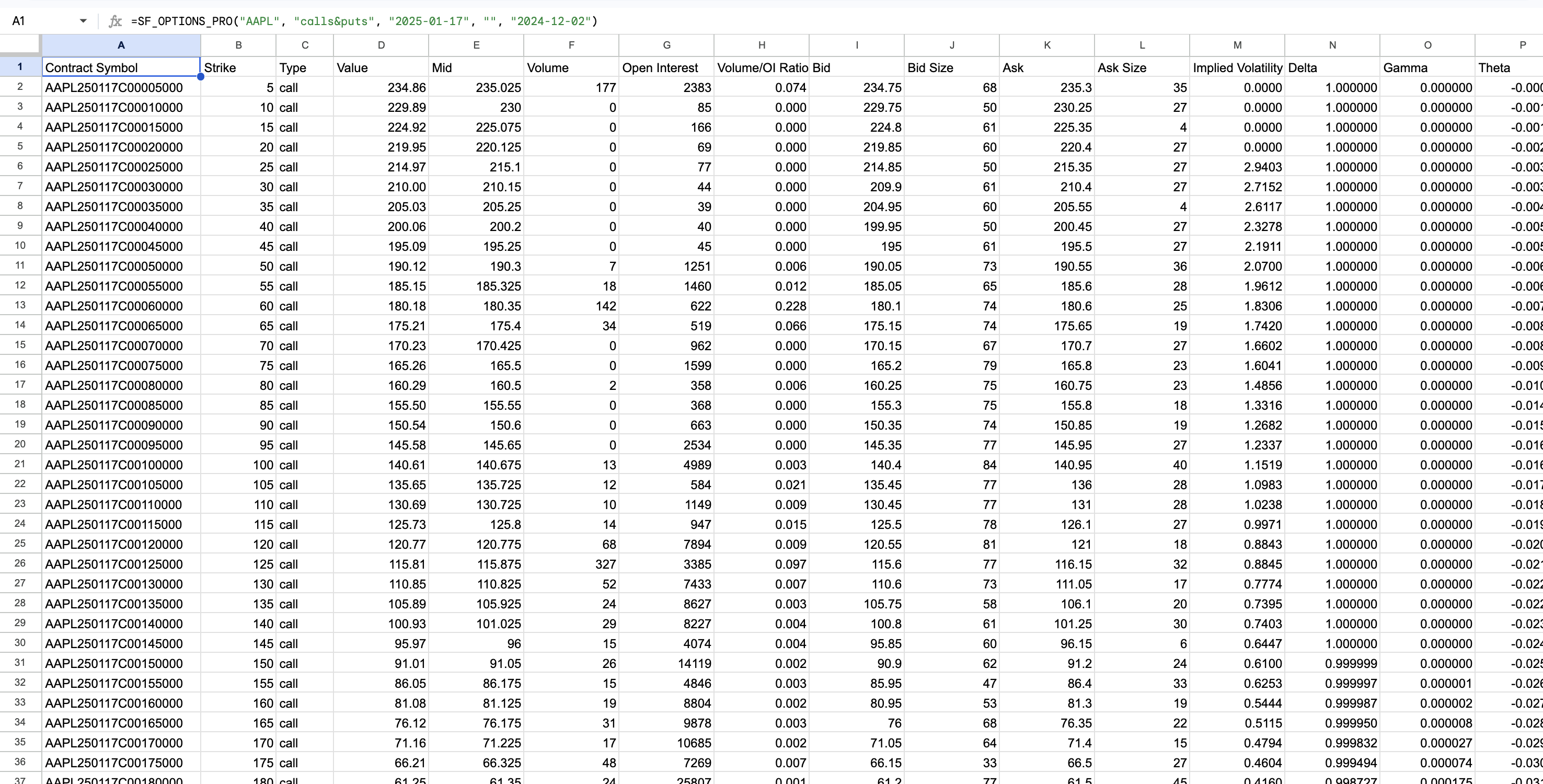
If you only need puts, change calls&puts to puts. For calls only, use calls.
=SF_OPTIONS_PRO("AAPL", "puts", "2025-01-17", "", "2024-12-02")Tip: If the exact date entered in
expirationDateis not a listed expiration, SheetsFinance returns the next listed expiration after that date.
2. Return Only the Fields and Strikes You Need
Returning every field for every strike is helpful for exploration, but a compact table is usually easier to work with in a backtest.
You can select fields with the metrics argument and use range=ntm to return near-the-money strikes:
=SF_OPTIONS_PRO("AAPL", "calls&puts", "2025-01-17", "", "2024-12-02", "", "contractSymbol&type&strike&bidPrice&askPrice&mid&volume&openInterest&impliedVolatility&delta&dte&stockPrice&tradeDate", "range=ntm")This produces a smaller point-in-time dataset containing the fields most strategies need for contract selection and basic execution assumptions.
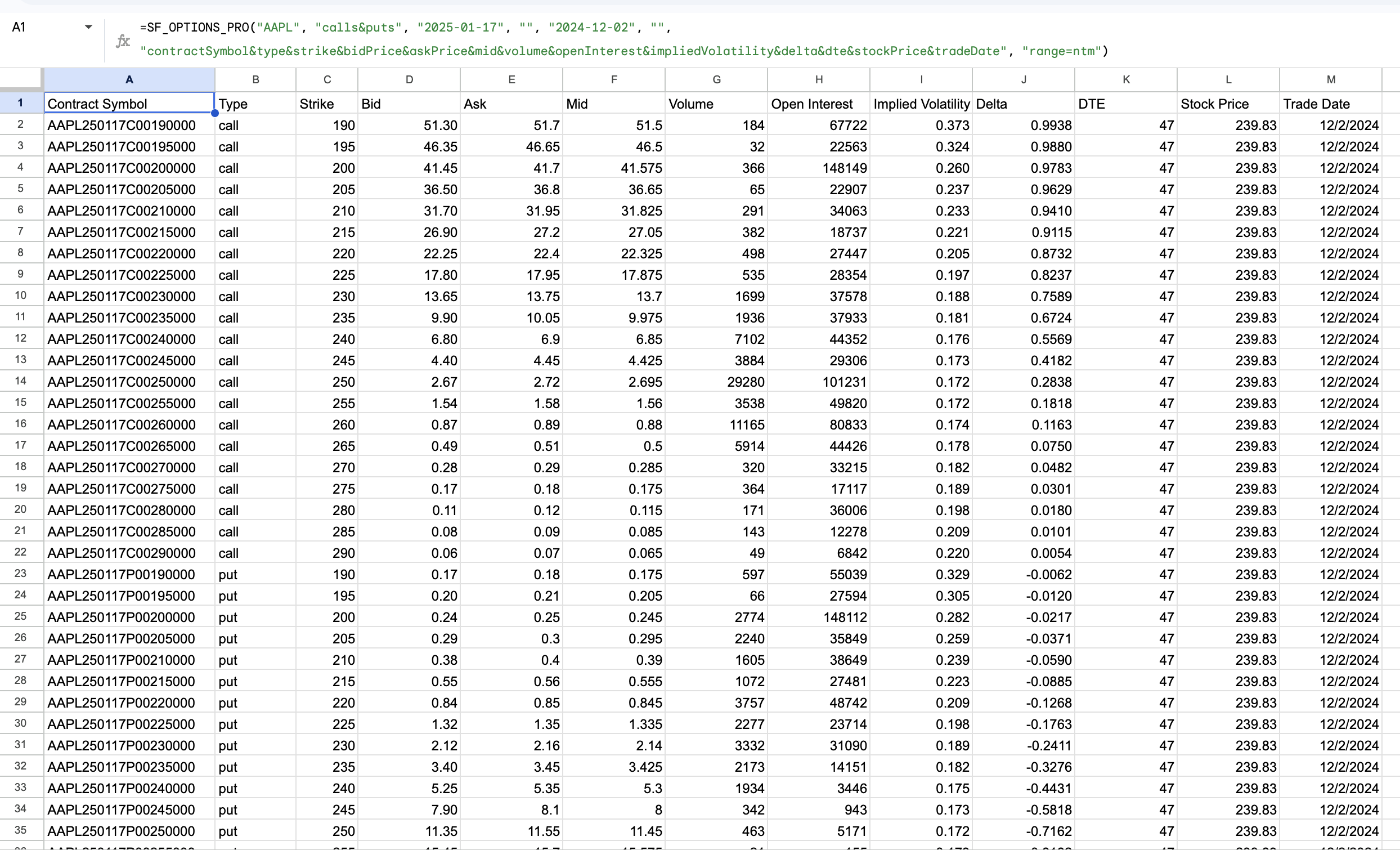
Other useful fields include:
valueandprevClosechangeandpercentChangebidSizeandaskSizegamma,theta,vega, andrhobidIvandaskIvinTheMoneyexpirDate,dte, andquoteDatespotPriceorstockPrice
You can also use range=20ntm or range=50ntm when you want a broader window around the money without loading the full chain.
3. Pull a Specific Expired Contract
If you already know the OCC contract symbol, enter it directly as the first argument. For example, this retrieves the AAPL January 17, 2025 $200 call as it appeared on December 2, 2024:
=SF_OPTIONS_PRO("AAPL250117C00200000", "", "", "", "2024-12-02", "", "tradeDate&contractSymbol&strike&mid&value&impliedVolatility&delta&stockPrice")An OCC option symbol combines:
- The underlying symbol
- The expiration in
YYMMDDformat Cfor a call orPfor a put- The strike price represented as an eight-digit number with three implied decimal places
In AAPL250117C00200000, 250117 means January 17, 2025, C means call, and 00200000 represents a $200 strike.
Direct contract lookup is especially useful when a previous step in your model has already selected and stored a contract symbol.
4. Follow an Expired Contract Through Time
A chain snapshot helps you make a point-in-time selection. To model what happened after entry, add an endDate and retrieve a time-series for the selected contract.
The following formula follows the same expired AAPL $200 call from December 2, 2024 through January 16, 2025:
=SF_OPTIONS_PRO("AAPL250117C00200000", "", "", "", "2024-12-02", "2025-01-16", "tradeDate&contractSymbol&mid&bidPrice&askPrice&volume&openInterest&impliedVolatility&delta&theta&stockPrice", "-")The "-" option sorts the result in descending chronological order. Remove it if you prefer the default ordering.
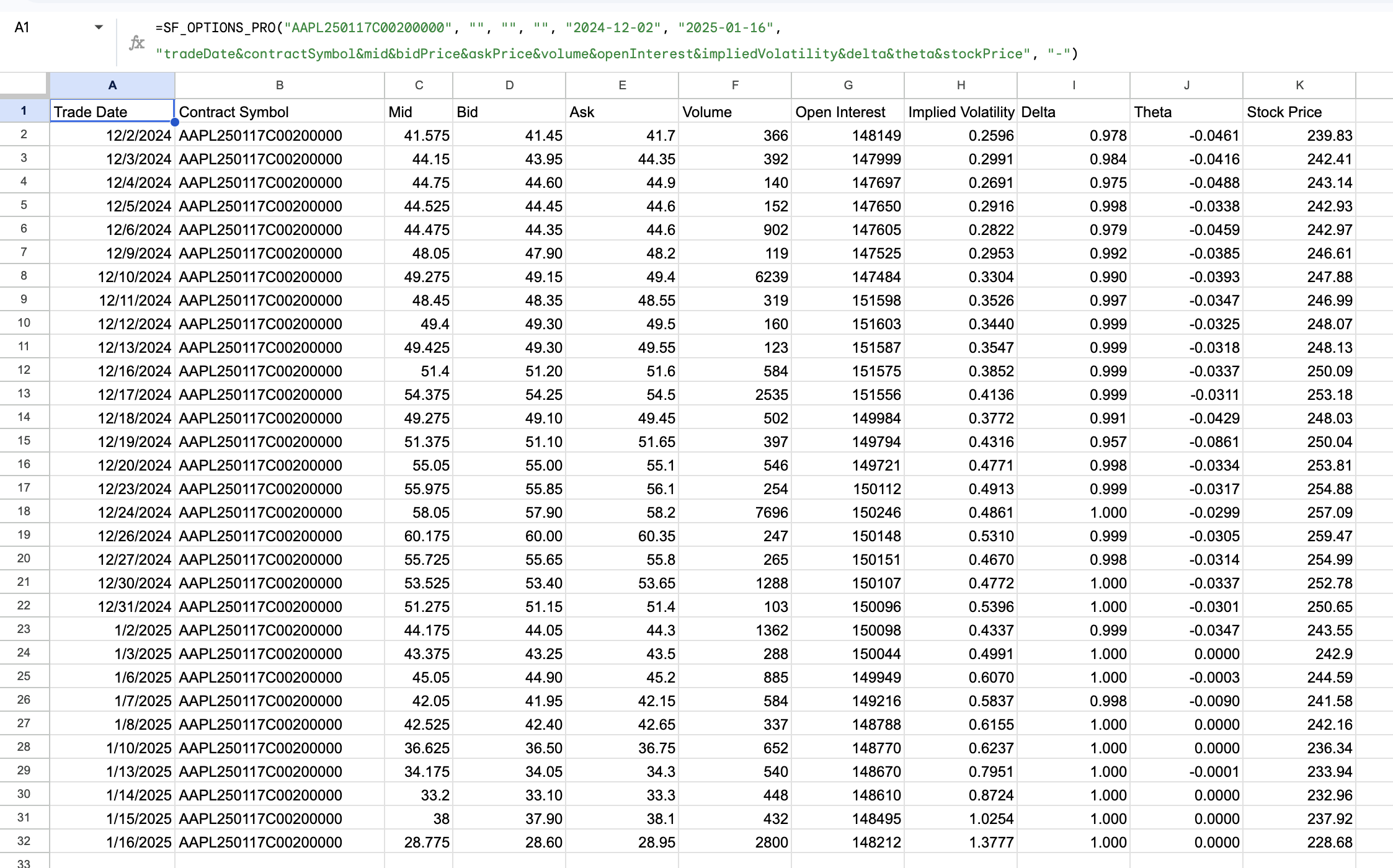
This view can help you study:
- Contract price changes over a holding period
- Time decay as expiration approaches
- Changes in implied volatility and Greeks
- Volume and open-interest conditions
- The relationship between the option and its underlying stock
You can also return both the call and put at a particular strike without supplying two OCC symbols:
=SF_OPTIONS_PRO("AAPL", "calls&puts", "2025-01-17", 200, "2024-12-02", "2025-01-16", "tradeDate&contractSymbol&type&mid&volume&openInterest&impliedVolatility&delta&theta&stockPrice", "groupBy=type")Important:
endDateapplies to a single OCC contract or a request where bothstrikeandexpirationDateare supplied. A full chain request is a point-in-time snapshot, not a full-chain date range.
A Repeatable Historical Options Backtesting Workflow
The formulas above provide the data. A sound workflow still needs clear rules for choosing and evaluating contracts.
- Define the entry rules. Record the decision date, target days to expiration, option type, target delta or moneyness, and minimum liquidity requirements.
- Reconstruct the historical chain. Use
tradeDateand includestockPrice,dte, IV, Greeks, volume, open interest, bid, and ask. - Select the contract without future information. Apply the rules defined above—for example, choosing the contract closest to 30 delta that also meets your spread and open-interest limits.
- Use a realistic entry assumption. The midpoint is not a guaranteed fill, so retain bid and ask data and apply a consistent slippage rule.
- Track the contract to exit. Store its OCC symbol and request a time-series through the planned exit, applying only the information available on each date.
- Repeat consistently. Use the same selection and execution assumptions across every test period so the process remains auditable.
Common Backtesting Mistakes to Avoid
- Selecting from today's chain: Current chains exclude expired contracts and may include strikes that did not exist on the historical decision date. Select from a point-in-time snapshot instead.
- Looking ahead when choosing a strike: Define the selection rule first rather than choosing the contract that later produced the best result.
- Assuming the midpoint was executable: Keep bid and ask data and apply explicit slippage assumptions appropriate to the contract's liquidity.
- Ignoring liquidity: Use volume, open interest, quoted size, and bid-ask spread when judging whether a theoretical trade was practical.
- Mixing dates and expirations:
tradeDatereconstructs the snapshot,expirationDateidentifies the contract family, andendDatecloses a contract or strike time-series.
What This Data Can and Cannot Tell You
SheetsFinance gives you point-in-time chain snapshots and historical contract or strike time-series inside Google Sheets and Excel. That makes it well suited to strategy research, screening, event studies, and spreadsheet-based backtesting.
It is not a tick-by-tick execution simulator or a complete portfolio backtesting engine. Your model is still responsible for contract-selection logic, capital allocation, commissions, slippage, assignment assumptions, and other execution rules.
Historical data and backtest results also do not guarantee future performance.
Frequently Asked Questions
Where can I get historical options chain data?
You can retrieve historical options chains directly in Google Sheets or Excel with SF_OPTIONS_PRO(). Supply the underlying, option type, expiration date, and a past tradeDate to reconstruct a point-in-time chain.
Can I retrieve an option after it has expired?
Yes. SheetsFinance includes expired contract coverage. You can request a past chain by underlying and expiration or retrieve a specific expired contract using its OCC symbol.
How far back does the historical options data go?
The dataset includes more than 20 years of historical options data.
Does the historical data include implied volatility and Greeks?
Yes. Available metrics include implied volatility and Greeks such as delta, gamma, theta, vega, and rho. Historical coverage includes backfilled Greeks.
Can I download a full historical chain over a date range?
A full historical chain is returned as a snapshot for one tradeDate. To retrieve a range, specify a single OCC contract or supply both an expiration and strike, then use tradeDate and endDate as the start and end of the series.
Does this work in both Google Sheets and Microsoft Excel?
Yes. The same SF_OPTIONS_PRO() workflow is available in both platforms. You can also use the built-in Function Generator to construct formulas without memorising every argument.
Start Exploring Historical Options Data
Historical options research becomes much more practical when you can reconstruct the chain that existed on the decision date and then follow the selected contract through time.
With SheetsFinance, both steps happen in the same spreadsheet using the same function:
- Set
tradeDateto inspect a point-in-time chain, including expired contracts. - Store the selected OCC symbol or strike.
- Add
endDateto retrieve its historical time-series. - Apply consistent selection, liquidity, and execution assumptions to each test.
Start a 15-day free trial or explore the Historical Chains and Contract & Strike Time-series documentation for the complete list of metrics and options.
For a broader introduction to current chains, IV rank, volatility surfaces, and other options workflows, read How to Get Options Data in Google Sheets and Excel.