SheetsFinance Now Available for Microsoft Excel 📊
I'm super excited to announce that SheetsFinance is now available for Microsoft Excel! 🎉
After years of serving thousands of users on Google Sheets, we've listened to your requests and brought the full power of SheetsFinance to Excel. Whether you're an Excel power user, work in a corporate environment that relies on Excel, or simply prefer Microsoft's spreadsheet platform, you can now access all of SheetsFinance's features right inside your Excel workbooks.
What we'll cover
- What makes SheetsFinance for Excel so powerful
- How to get started with SheetsFinance in Excel
- Key features and functions available
- Why Excel + SheetsFinance is a game-changer for financial analysis
🔥 What makes SheetsFinance for Excel so powerful
Native Excel Integration
SheetsFinance for Excel isn't just a port, it's a fully native Excel add-in built from the ground up to leverage Excel's powerful calculation engine and familiar interface. All your favorite SheetsFinance functions work seamlessly in Excel with the same syntax you know and love.
Excel-powered Performance
Excel's calculation engine is optimized for performance, especially on desktop versions. This means you can build complex financial models with thousands of SheetsFinance functions without worrying about slowdowns.
- ⚡️ Significantly faster data retrieval and processing compared to Google Sheets, especially for large datasets.
- 🚀 Higher-capacity data workflows without being bottlenecked by Google's external request quota, giving Excel users more room for large models and research-heavy workbooks.
Enterprise-Ready
Excel is the standard in corporate finance, investment banking, and institutional investing. With SheetsFinance for Excel, you can now:
- Build sophisticated financial models with real-time* data
- Create dynamic dashboards that auto-refresh with up-to-date market data
- Access your brokerage portfolio data alongside your analysis
- Share workbooks with colleagues while maintaining data connectivity
Full Feature Parity
Everything you love about SheetsFinance on Google Sheets is available in Excel:
- ✅ Real-time* stock prices for 80,000+ assets from over 85 global markets
- ✅ 30+ years of historical price data, including intra-day data down to 1-minute intervals
- ✅ 30+ years of consolidated financial statements (income statement, balance sheet, cash flow)
- ✅ 100s of financial metrics and ratios
- ✅ Insider trading data
- ✅ Institutional holdings
- ✅ ETF holdings and analytics
- ✅ Cryptocurrency data
- ✅ FOREX rates
- ✅ Brokerage account connections (holdings, transactions, orders, balances, options)
- ✅ Financial calendars (earnings, dividends, IPOs, economic events)
- ✅ News feeds
- ✅ And much more!
* Real-time data is subject to exchange delays and may not be instantaneous. See Available Markets for details on data latency.
🧑🏽💻 How to Get Started with SheetsFinance in Excel
Getting started is incredibly simple:
Step 1: Install the Add-in
- Open Microsoft Excel (Desktop, Web, or Mac)
- Click Insert > Get Add-ins from the ribbon menu
- Search for "SheetsFinance" in the Office Add-ins store
- Click Add to install
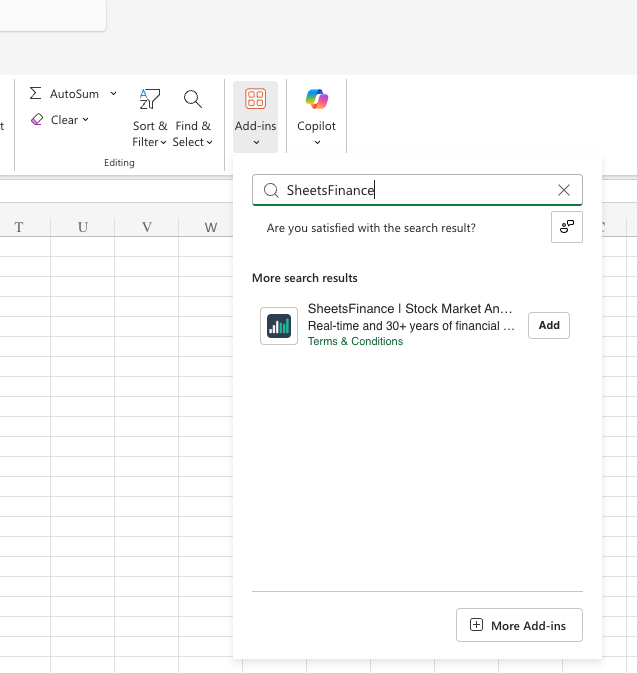
Step 2: Connect Your Account
- After installation, click the SheetsFinance button in the ribbon menu
- The sidebar will open - click Account from the menu
- Enter your Excel Connection ID from your SheetsFinance Account Dashboard
- Click Connect
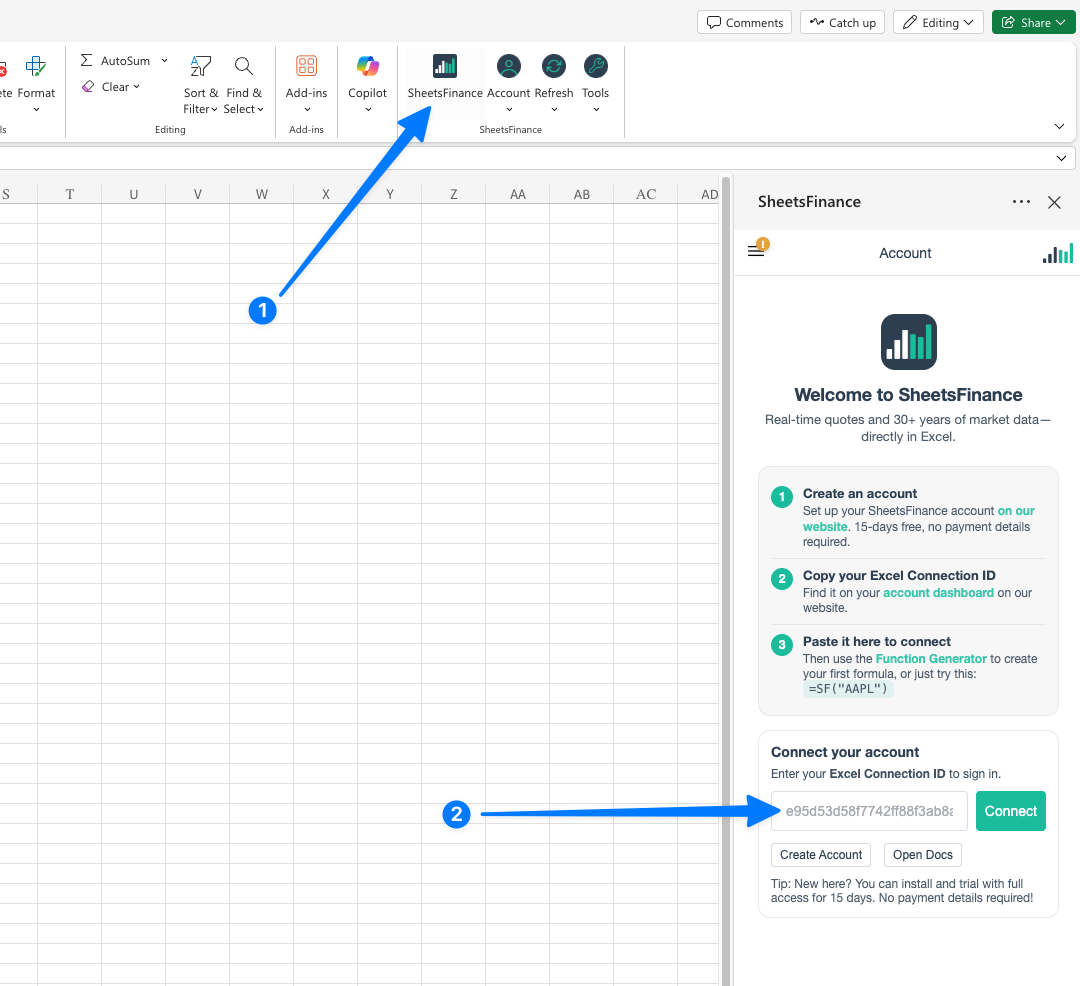
Don't have a SheetsFinance account? Sign up at sheetsfinance.com/register for a 15-day free trial, no payment details required!
Step 3: Start Using SheetsFinance Functions
Once connected, you can immediately start using SheetsFinance functions in your cells. Here's a simple example to get Apple's real-time stock price:
=SF("AAPL")Or perhaps the last 10 years of income statement data for Microsoft:
=SF("MSFT", "income", "all", "2015-2025")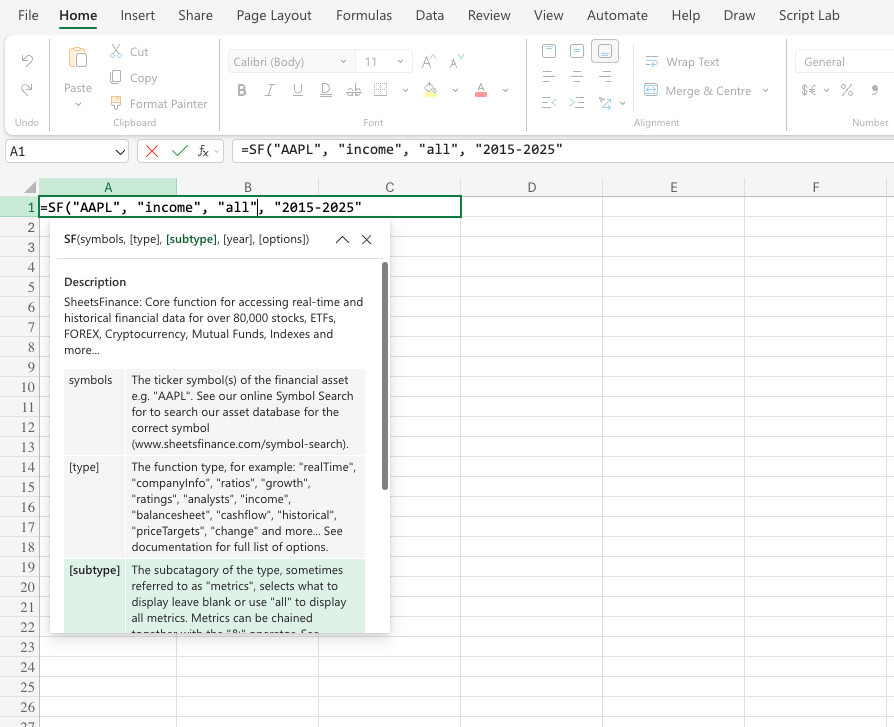
💪 Key Features in Excel
All the features you know and love from SheetsFinance on Google Sheets are available in Excel, but if this is your first time hearing about SheetsFinance, here are some of the most popular functions to get you started:
1. Real-Time Market Data
Pull live stock prices, volume, market cap, and 40+ other metrics for any publicly traded company:
=SF(A1:A5, "quote", "price&volume&marketCap&pe")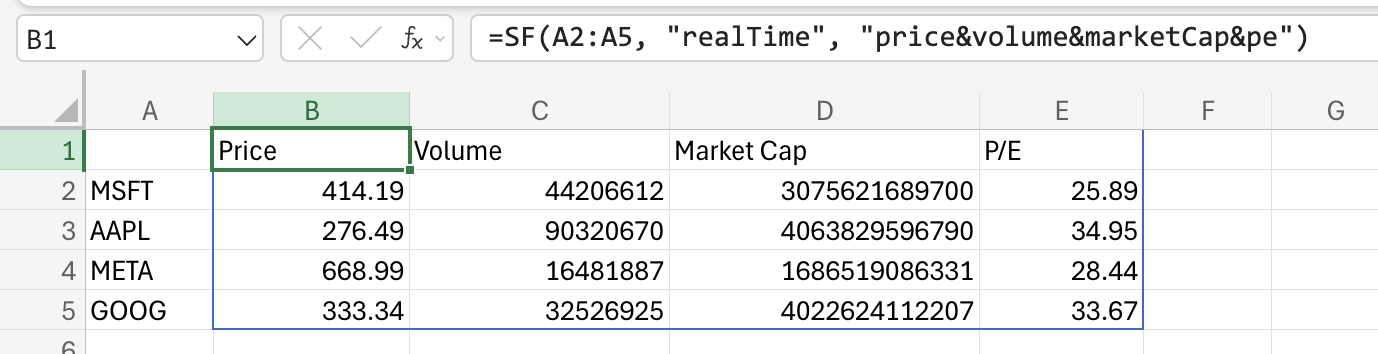
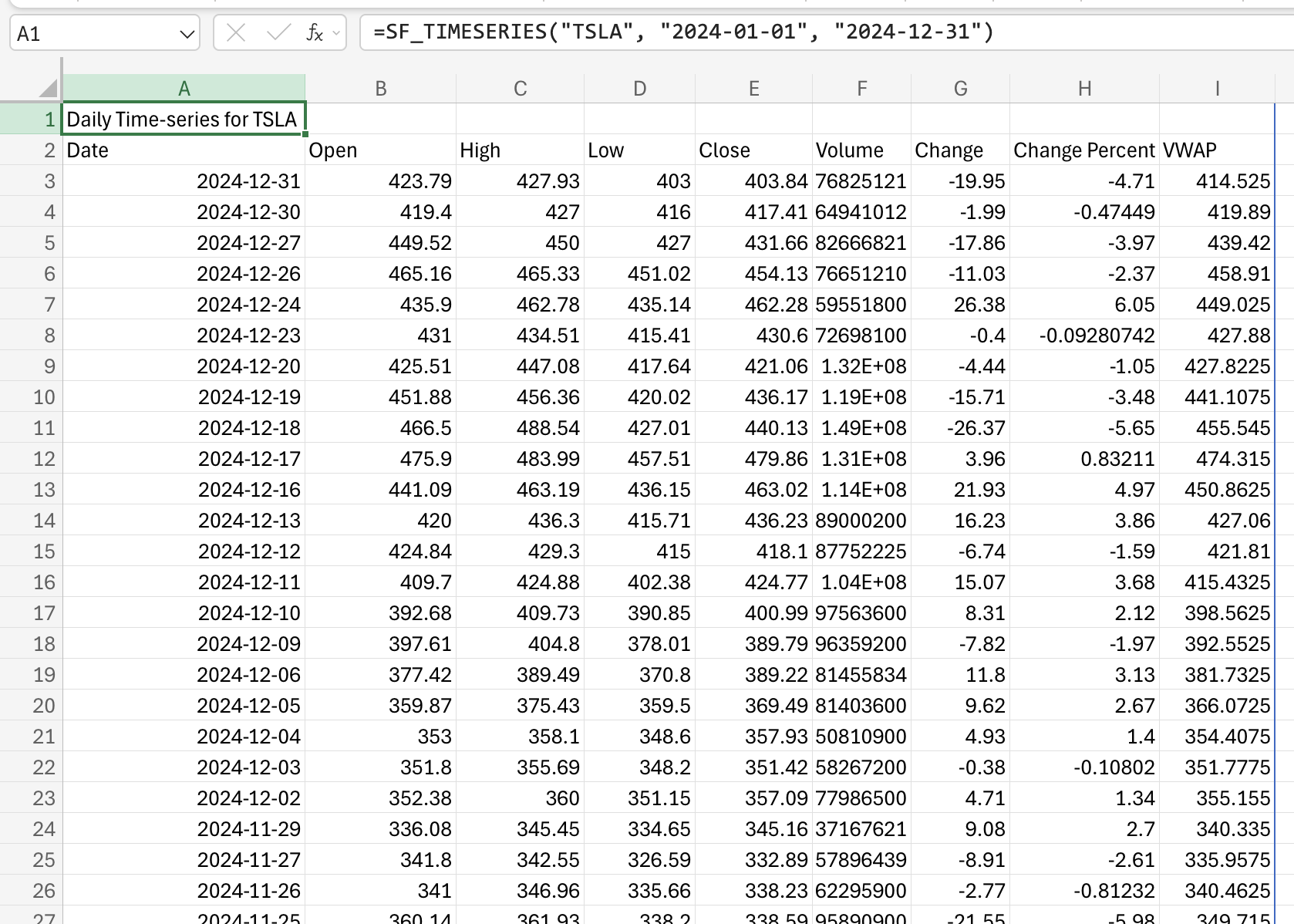
2. Historical Price Data
Access up to 30 years of historical OHLCV data for any ticker:
=SF_TIMESERIES("TSLA", "2024-01-01", "2024-12-31")Build charts, calculate returns, perform technical analysis—all within Excel.
3. Financial Statements
Pull complete financial statements with a single formula:
=SF("NVDA", "income", "all")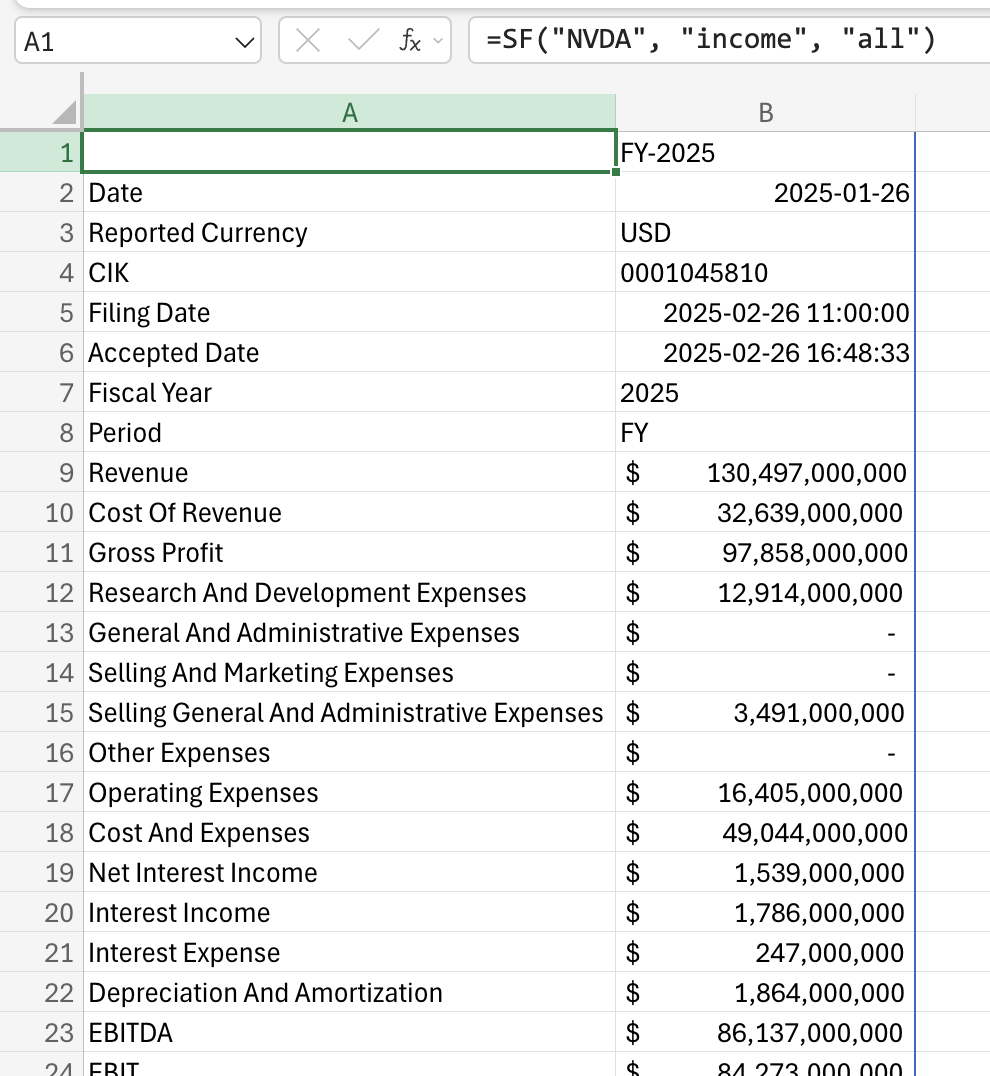
4. Brokerage Connections
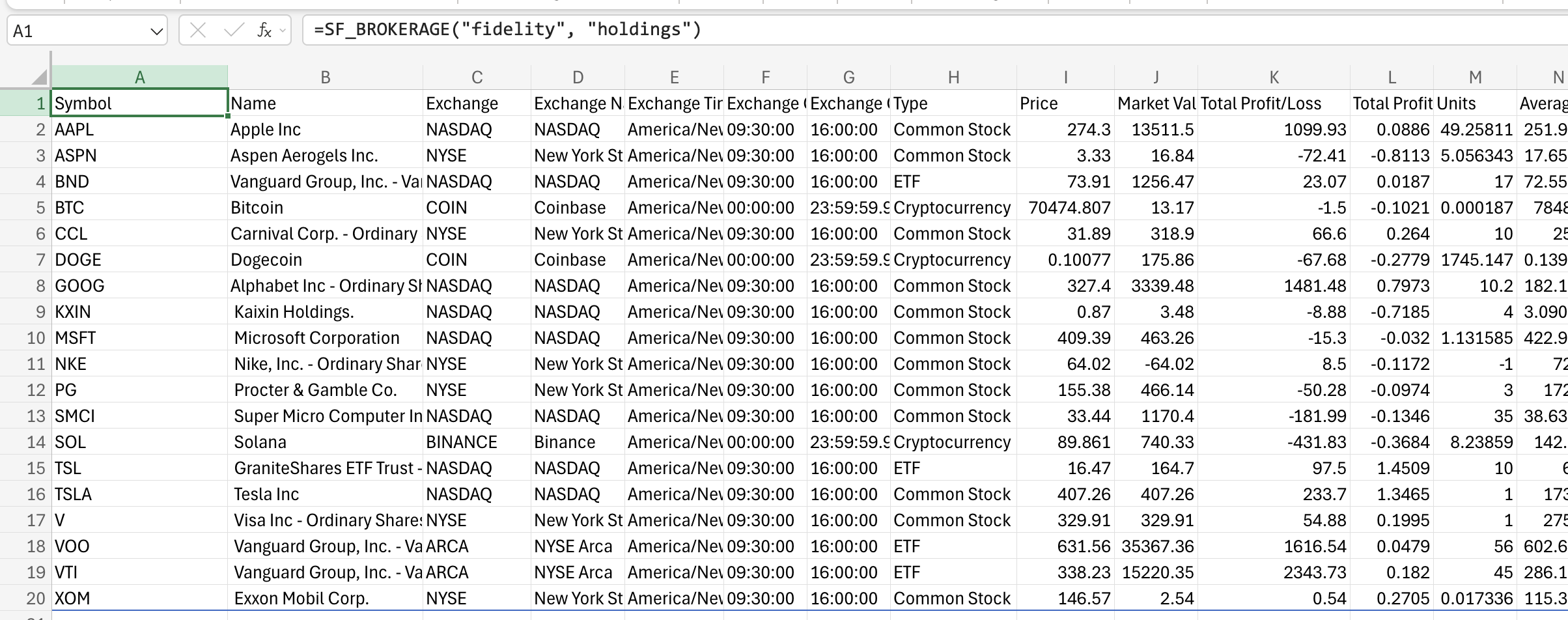
Connect your brokerage accounts and pull your real portfolio data into Excel:
=SF_BROKERAGE("fidelity", "holdings")Track your investments, analyze performance, and build custom portfolio dashboards, all with your actual holdings data.
5. Function Generator
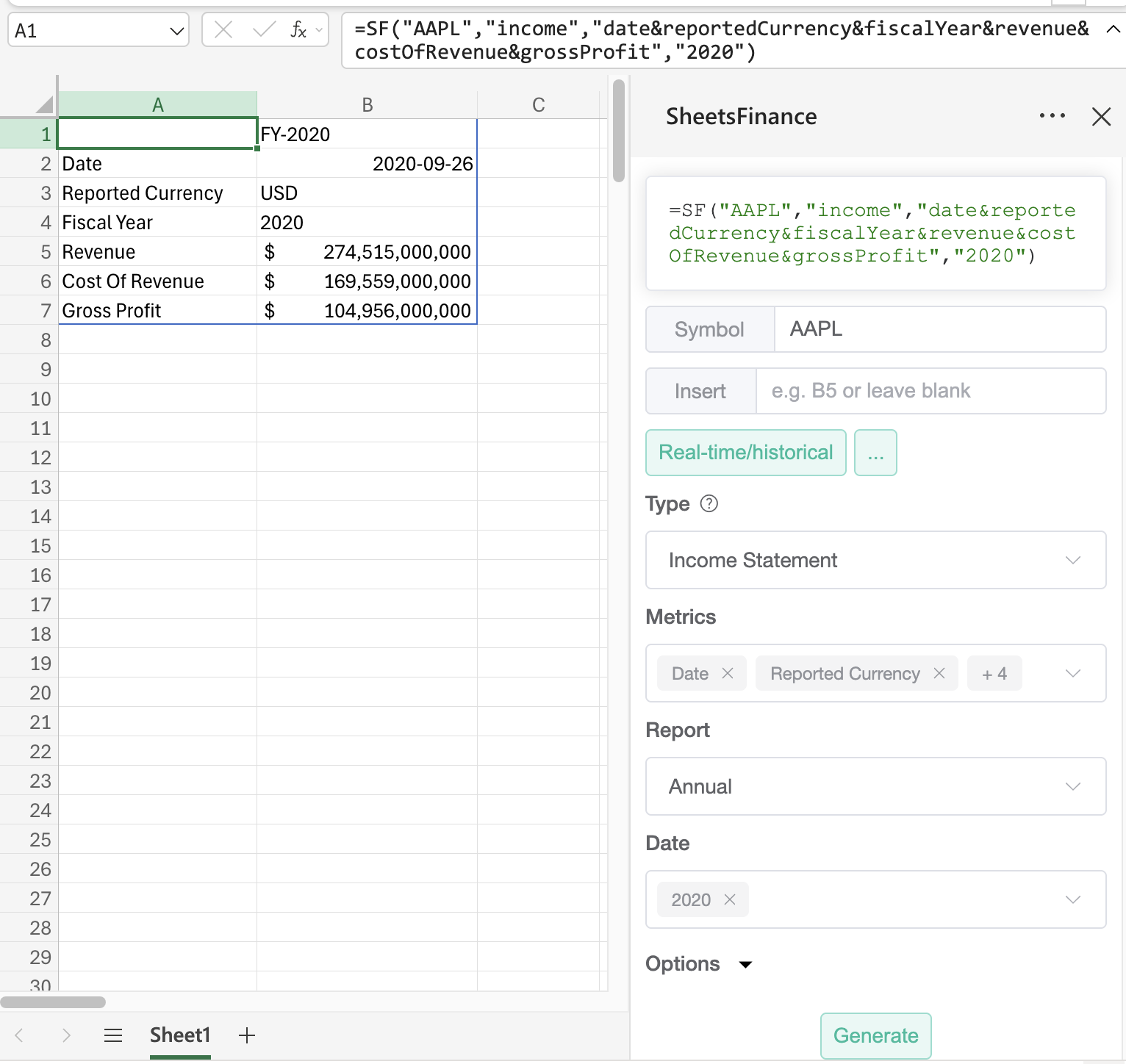
Not sure what function to use? Open the built-in Function Generator from the ribbon menu to build formulas with a user-friendly interface:
- Click the SheetsFinance button in the ribbon
- Select your data type, ticker, and metrics
- Click Generate to insert the formula
6. Batch Functions
Excel's calculation engine combined with our batch functions means you can load data for hundreds or thousands of securities at once:
=SF(A1:A1000, "price&volume&marketCap")This is perfect for building stock screeners, watchlists, or portfolio trackers.
🏆 Why Excel + SheetsFinance is a game-changer for financial analysis
Excel is the gold standard for unfiltered, flexible financial analysis. By bringing SheetsFinance's real-time and historical financial data directly into Excel, we're empowering analysts, investors, and finance professionals to do more than ever before. There are tools that provide financial data, and there are tools that provide powerful analysis capabilities—but few that combine both in a seamless way. With SheetsFinance for Excel, you get the best of both worlds:
1. Simple, intuitive formulas that pull in complex financial data with ease
No more manual data exports or complicated API calls. Just use simple formulas to get the data you need, when you need it. Our formulas are designed to be human-readable and easy to use, even for those new to Excel. They all follow a logical, extendable structure allowing you to intuitively interact with complex data sets without needing to learn a new programming language.
3. Premium financial data sourced from top-tier providers
We source our data through enterprise partnerships with leading financial data providers, ensuring you get accurate, reliable, and up-to-date information for your analysis. Our data covers 80,000+ assets across 85+ global markets, giving you unparalleled breadth and depth of financial information at your fingertips.
4. Lightning fast performance, built by software engineers for financial professionals
SheetsFinance for Excel is built on a modern tech stack optimized for speed and reliability. Our batch processing and caching mechanisms ensure that even workbooks with thousands of formulas load quickly and efficiently, without the slowdowns typically associated with large data sets in Excel.
5. Comprehensive online documentation and a community of users to support you
Our online documentation provides detailed guides, function references, and best practices to help you get the most out of SheetsFinance in Excel. Plus, our growing community of users is always sharing tips, templates, and use cases to inspire your own financial analysis projects, check it out on Discord. Lastly, we have an active YouTube channel with tutorials and walkthroughs to help you master SheetsFinance in Excel.
6. The fraction of the cost of traditional financial data terminals
This goes without saying, but SheetsFinance for Excel is a fraction of the cost of Bloomberg, FactSet, or Refinitiv. We believe that access to high-quality financial data should be democratized and affordable for everyone, from individual investors to large institutions.
📚 Learn More
Ready to dive deeper? Check out these resources:
- Installation Guide - Detailed setup instructions
- Function Reference - Complete list of all available functions
- Brokerage Guide - Learn how to connect your brokerage accounts
- Performance Tips - Optimize your workbooks for speed
🎯 Get Started Today
SheetsFinance for Excel is available now! Install it today and experience the power of real-time financial data in the world's most popular spreadsheet application.
Key Links:
Whether you're a financial analyst, portfolio manager, day trader, or personal investor, SheetsFinance for Excel gives you the tools to make better, more informed decisions with real-time data at your fingertips.
Welcome to the future of financial analysis in Excel! 🚀