How to Get Short Interest Data in Google Sheets and Excel
You can pull short interest data into Google Sheets or Microsoft Excel with one formula. SF() returns the latest reported shares shorted, float, and short interest as a percentage of float for a stock, and SF_TIMESERIES() returns the same fields for every settlement date in a range.
That is enough to build a short interest tracker for a watchlist, chart how positioning has changed, estimate days to cover, and set short interest beside institutional and insider ownership without copying figures from a website by hand.
Start a 15-day free trial of SheetsFinance Market Data (no payment details required) to reproduce every example in this guide. Short interest is available from the Investor plan upward and the ownership breakdown from the Analyst plan. The trial includes Analyst-level feature access with a limit of 1,000 data calls per day.
What Short Interest Data Returns
The shortInterest data type has four fields:
| Metric | What it means | How to use it |
|---|---|---|
date |
The settlement date of the observation | Check how recent a reading is before comparing stocks |
sharesShorted |
Shares sold short and not yet covered | Divide by average daily volume to estimate days to cover |
sharesFloat |
Shares available for public trading | Judge how large the short position is relative to tradable supply |
shortInterestPercentage |
Shares shorted as a share of float | Compare short positioning across companies of different sizes |
shortInterestPercentage is returned as a decimal fraction: 0.25 means 25% of float. Format the cell as a percentage.
Short interest is not a daily figure. FINRA explains that brokerage firms report short positions twice a month, around the middle and the end of each month, as a snapshot on a given settlement date. Expect roughly two new rows per month, and always read the date beside the number.
The Short Interest Formulas
Use SF() for the latest reading:
=SF(symbol, "shortInterest", metric, "", options)Use SF_TIMESERIES() for history:
=SF_TIMESERIES(symbol, startDate, endDate, "shortInterest", metrics, options)symbolis one ticker as text or a single cell reference, such as"TSLA"orA2.metriccan be blank or"all", a single field, or several joined with&, such as"date&sharesShorted".startDateandendDateare optional and useYYYY-MM-DD. Leave both blank for the full available history. Future dates are rejected.optionsaccepts"NH"to remove the header. The time-series form also accepts"-"for oldest-first order andscale=K,scale=M, orscale=Bto divide the share counts. Scaling never changes the percentage.
The fourth SF() argument is not used for this data type, so leave it empty. Both functions use the same syntax in Google Sheets and Excel.
1. Pull the Latest Short Interest for a Stock
Enter this in A1 to return every field for the most recent settlement date:
=SF("TSLA","shortInterest")
The result is a header row and one row of values. When this guide was written, Tesla's latest reading was for the 30 September 2026 settlement date: 70.9 million shares shorted against a float of 2.82 billion, or 2.5% of float.
When you ask for a single metric, the formula returns one value that fits in one cell:
=SF("TSLA","shortInterest","shortInterestPercentage")2. Build a Short Interest Watchlist with Days to Cover
Short interest takes one symbol per formula, so a watchlist uses one row of formulas filled down. Put the labels Symbol, Settlement date, Shares shorted, Short % of float, Avg. volume, and Days to cover in A1:F1, then list your tickers from A2 to A11.
Enter these in row 2 and fill columns B to D down to row 11:
=SF($A2,"shortInterest","date")=SF($A2,"shortInterest","sharesShorted")=SF($A2,"shortInterest","shortInterestPercentage")Average volume comes from the real-time quote, which accepts a whole range. Enter this once in E2 and it fills the column for every ticker:
=SF(A2:A11,"realTime","avgVolume","","NH")Then calculate days to cover in F2 and fill it down:
=C2/E2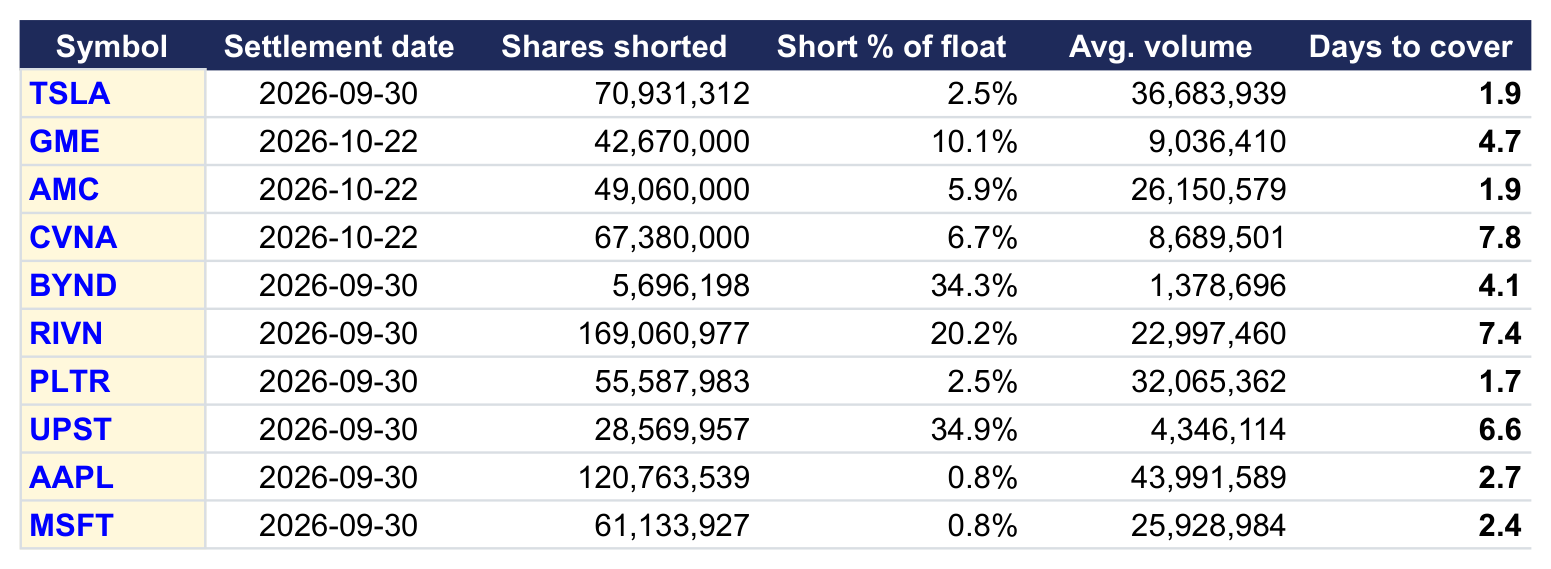
Format column D as a percentage and column F to one decimal place. A colour scale on column D makes the most heavily shorted names stand out. In this October 2026 example, Upstart (34.9%) and Beyond Meat (34.3%) had the highest short interest as a share of float, while Carvana (7.8) and Rivian (7.4) would take the most days to cover.
Look at the settlement dates too. GME, AMC and CVNA showed a 22 October reading while the rest of the list was still on 30 September, so the latest figures for different stocks can come from different reporting dates.
Days to cover is an estimate of how many sessions of typical volume it would take short sellers to buy back every shorted share. Published figures divide by average volume over the reporting period, so a ratio built on a current average-volume reading will differ slightly. Use it to rank a watchlist, not to reconcile against an exchange's number.
Each short interest cell is a separate data call, so ten tickers across three columns use thirty calls per refresh. See Batching and Limits if you plan a large list.
3. Track Short Interest Through Time
Leave both dates blank to return the full available history, newest settlement date first. The output starts with a title row and a header row:
=SF_TIMESERIES("TSLA","","","shortInterest","all")For a chart, a bounded range in oldest-first order with share counts in millions is easier to read:
=SF_TIMESERIES("TSLA","2025-10-01","2026-09-30","shortInterest","date&sharesShorted&shortInterestPercentage","scale=M&-")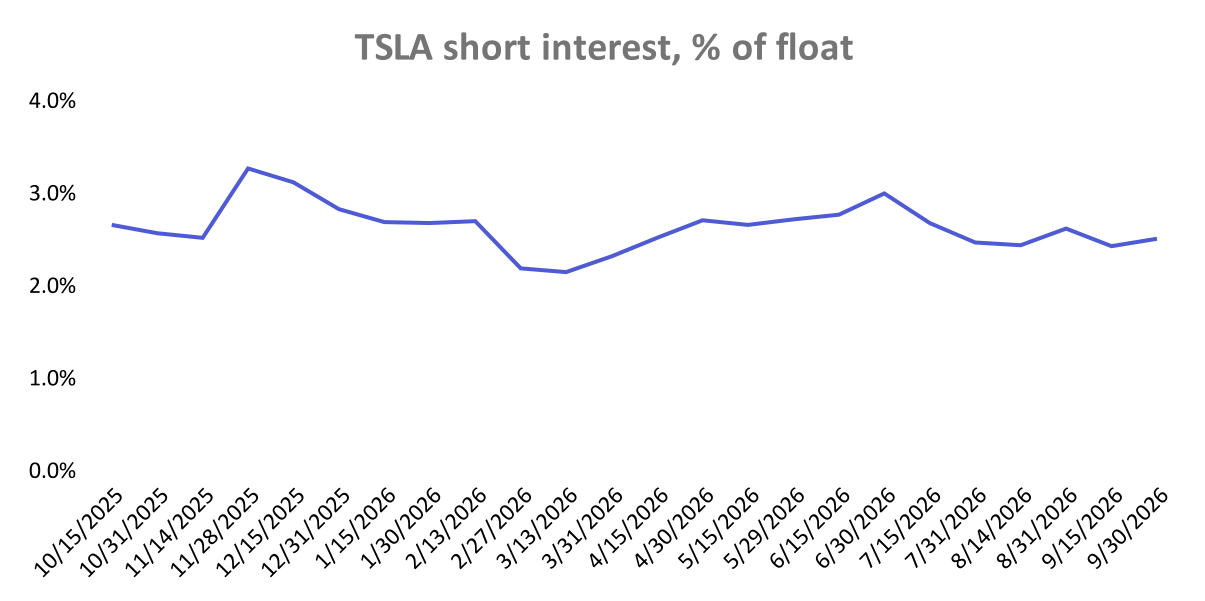
Select the date and percentage columns and insert a line chart. The one-year window above returned 24 settlement dates for Tesla, two a month, so each point on the chart is a reporting date rather than a trading day.
4. Set Short Interest Beside the Share Price
A rising short position means something different when the price is falling than when it is climbing. To line the two up, put the labels Settlement date, Shares shorted (M), Short % of float, and Close in A1:D1, then pull the short interest history without a header into A2:
=SF_TIMESERIES("TSLA","2025-10-01","2026-09-30","shortInterest","date&sharesShorted&shortInterestPercentage","scale=M&-&NH")Type Date and Close in F1:G1, then pull daily closing prices for the same window into F2:
=SF_TIMESERIES("TSLA","2025-10-01","2026-09-30","daily","date&close","-&NH")In D2, look up the close on each settlement date, falling back to the previous trading day if the market was closed, and fill it down:
=XLOOKUP(A2,$F$2:$F$400,$G$2:$G$400,"",-1)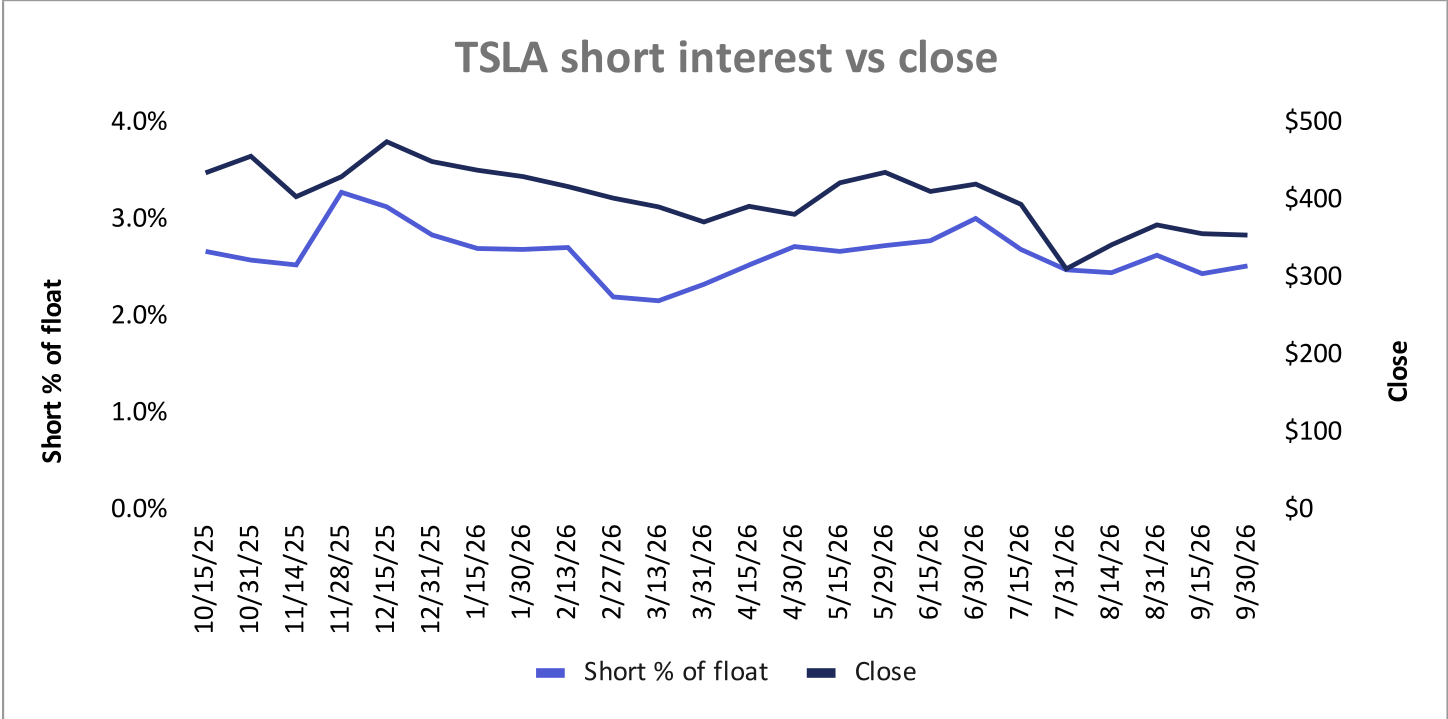
Chart Short % of float and Close against the settlement date as a combination chart with the price on a secondary axis. For more on the price series, see Historical and Intraday Stock Data in Google Sheets.
5. Add Institutional and Insider Ownership
The ownership data type shows who holds the rest of the shares. It follows the same pattern as short interest:
=SF("TSLA","ownership")It returns the observation date with institutionsPercent, insidersPercent, and undisclosedPercent, each as a decimal fraction. For history, set the SF_TIMESERIES() period to "ownership". Unlike short interest, ownership history for Tesla came back with an observation for most trading days:
=SF_TIMESERIES("TSLA","2025-10-01","2026-09-30","ownership","all","-")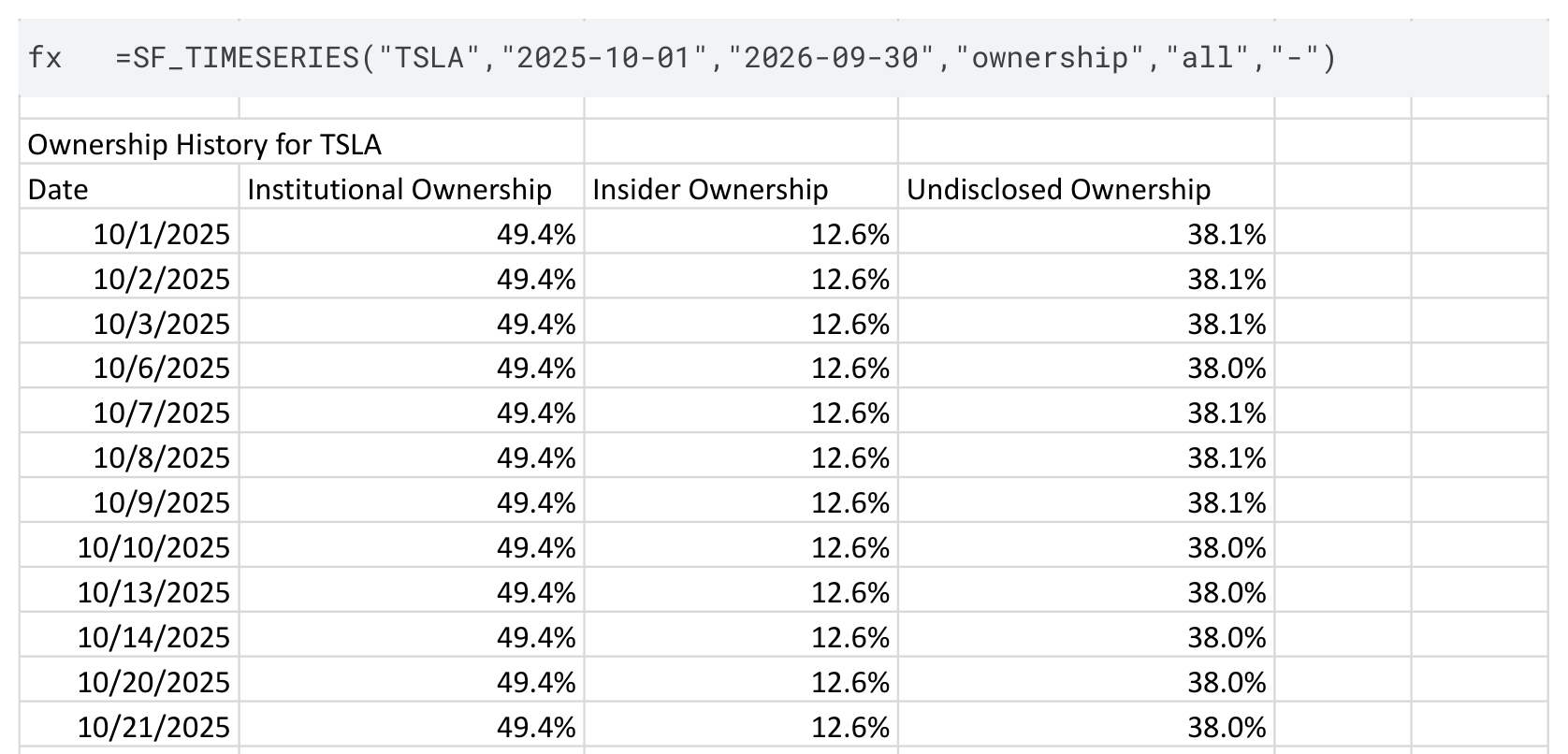
Ownership percentages do not accept scale=. To see the individual institutions behind the aggregate figure, use the Institutional Holders data type, and for executive and director transactions see Accessing Real-time Insider Trading Data in Google Sheets.
How to Read the Numbers
| Measure | Calculation | What it describes |
|---|---|---|
| Short interest | sharesShorted |
The size of the open short position in shares |
| Short % of float | sharesShorted / sharesFloat |
The short position relative to the shares that can actually trade |
| Days to cover | sharesShorted / average daily volume |
How long covering would take at typical volume. Also called the short interest ratio |
A high reading tells you that many investors are positioned for a decline. It does not tell you they are right, and it does not predict a short squeeze. Treat it as one input alongside fundamentals, price action, and upcoming events, and compare a stock with its own history as well as with its peers.
Common Mistakes to Avoid
- Reading the percentage as a whole number:
0.08is 8% of float. - Expecting daily updates: Short interest is reported about twice a month. A new price does not mean a new short interest figure.
- Confusing short interest with short sale volume: Short interest is an open position on a settlement date. Daily short sale volume counts trades and is a different dataset.
- Comparing readings from different dates: Keep
datein the sheet so a stale observation is obvious. - Passing a range of tickers to
shortInterest: It takes one symbol per formula. Fill the formula down instead. - Putting
"shortInterest"in the metrics argument ofSF_TIMESERIES(): It belongs in the fourthperiodargument. - Applying
scale=and forgetting it: Scaled share counts are in thousands, millions, or billions. Divide by an unscaled volume figure and days to cover will be wrong. - Requesting a future end date: Dates after today are rejected.
Frequently Asked Questions
How do I get short interest in Google Sheets?
Use =SF("TSLA","shortInterest") for the latest reading, or =SF("TSLA","shortInterest","shortInterestPercentage") for just the percentage of float. Replace the ticker with a cell reference to reuse the formula.
Can I pull short interest into Microsoft Excel?
Yes. SF() and SF_TIMESERIES() use the same short interest syntax in Excel and Google Sheets.
How often is short interest updated?
About twice a month. Firms report positions around the middle and the end of each month, so each stock gains roughly two observations a month.
How do I calculate days to cover?
Divide shares shorted by average daily volume. In the watchlist above that is =C2/E2, using sharesShorted and the avgVolume quote metric.
Can I get historical short interest data?
Yes. =SF_TIMESERIES("TSLA","","","shortInterest","all") returns the full available history, and start and end dates narrow it to a window.
Why does a symbol return no short interest?
Check the ticker format with Symbol Search first. If the symbol is correct, short interest may not be reported for that listing.
Start Tracking Short Interest in Your Own Sheet
Begin with the single-stock formula, turn it into a watchlist with days to cover, then add the history chart for the names you follow most closely. Every formula accepts a cell reference, so the same sheet works for any supported stock.
Review the Short Interest and Ownership function references, or start a 15-day Market Data trial to build the tracker in Google Sheets or Excel. To find candidates for the watchlist, continue with How to Build a Stock Screener in Google Sheets and Excel.