
Google Sheets
Install the add-on
Open a new Google Sheet
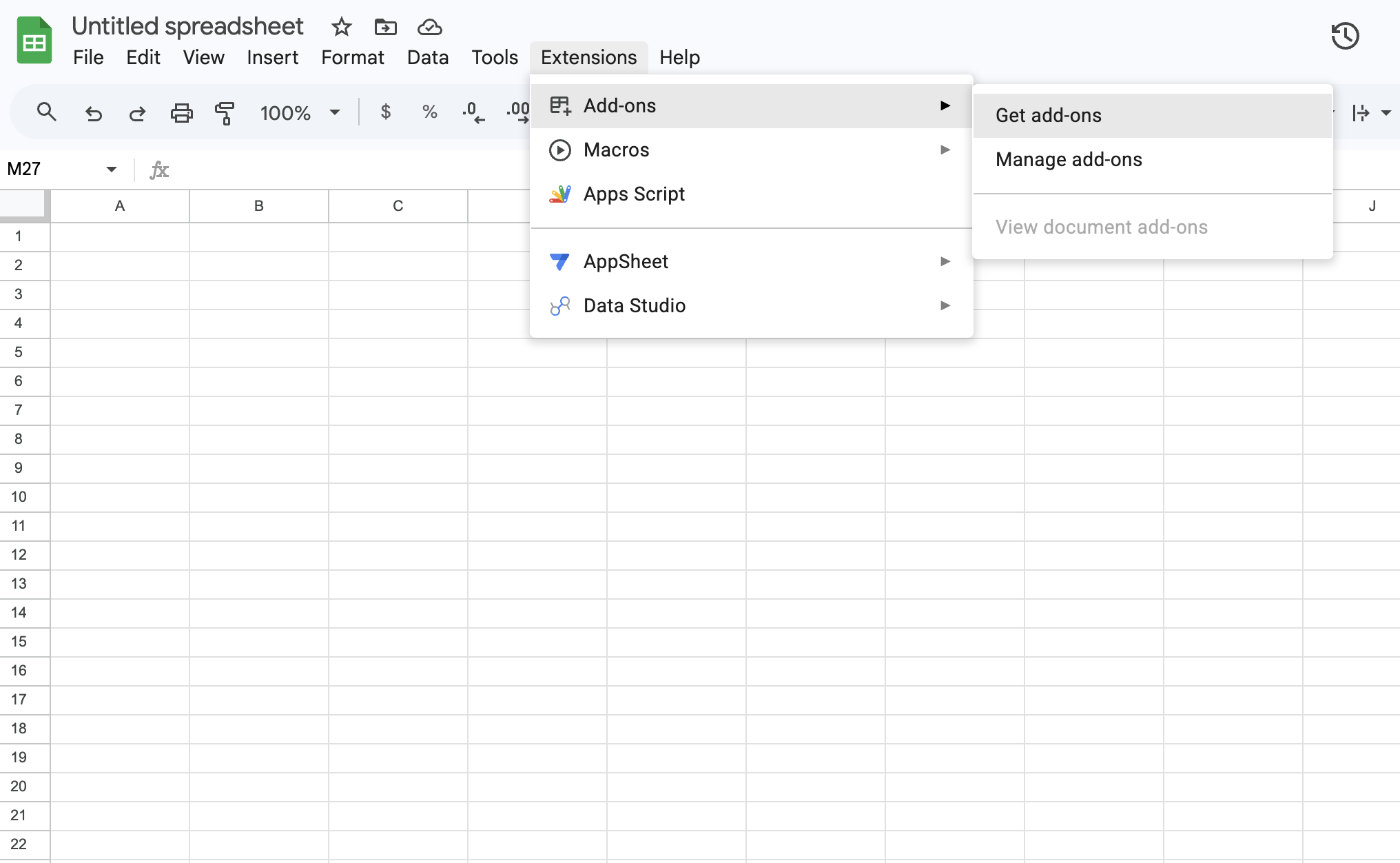
Navigate to the Extensions menu and select Add-ons from the dropdown, then Get add-ons (this will open Google Workspace Marketplace within a pop-up modal)
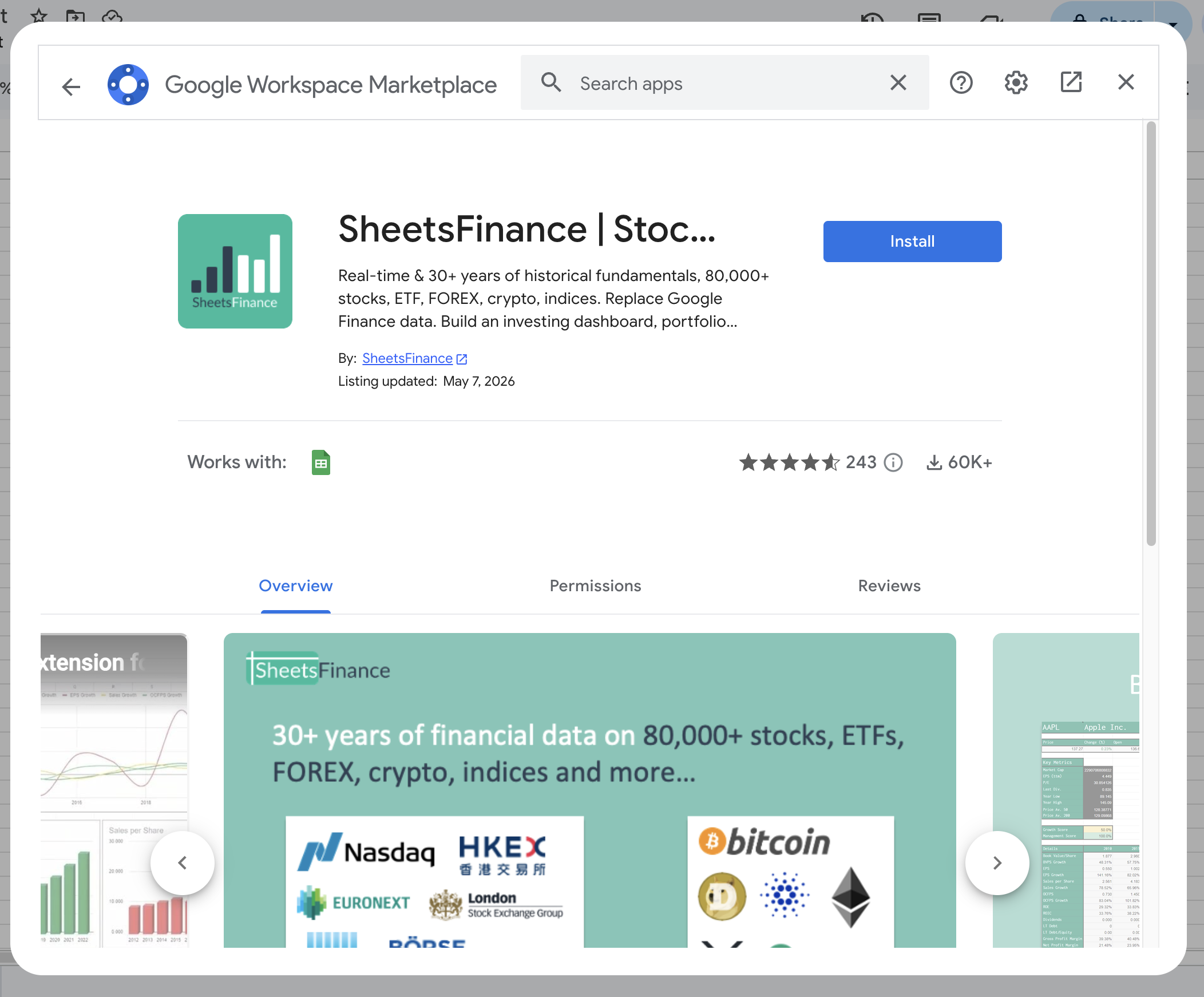
Search for SheetsFinance
Select the SheetsFinance add-on and click Install
Refresh your Google Sheet to ensure it's all working correctly
Connecting Google Sheets to your SheetsFinance account
There are two valid ways to get started in Google Sheets:
Option 1 - Register directly from Google Sheets
If Google Sheets is your first touchpoint, you can complete your full SheetsFinance registration directly from the add-on.
Open
Extensions > SheetsFinance > AccountChoose the account creation flow inside the Account modal
Complete registration and choose your free trial(s)
Once complete, SheetsFinance will roll straight into connected access in that Google Sheets environment
Option 2 - Sign up on the website first, then connect with your Connection ID
If you already created your SheetsFinance account on the website, you can install SheetsFinance under any Google account and then connect it manually.
Open
Extensions > SheetsFinance > AccountCopy your
Connection IDfrom your SheetsFinance Account DashboardPaste that
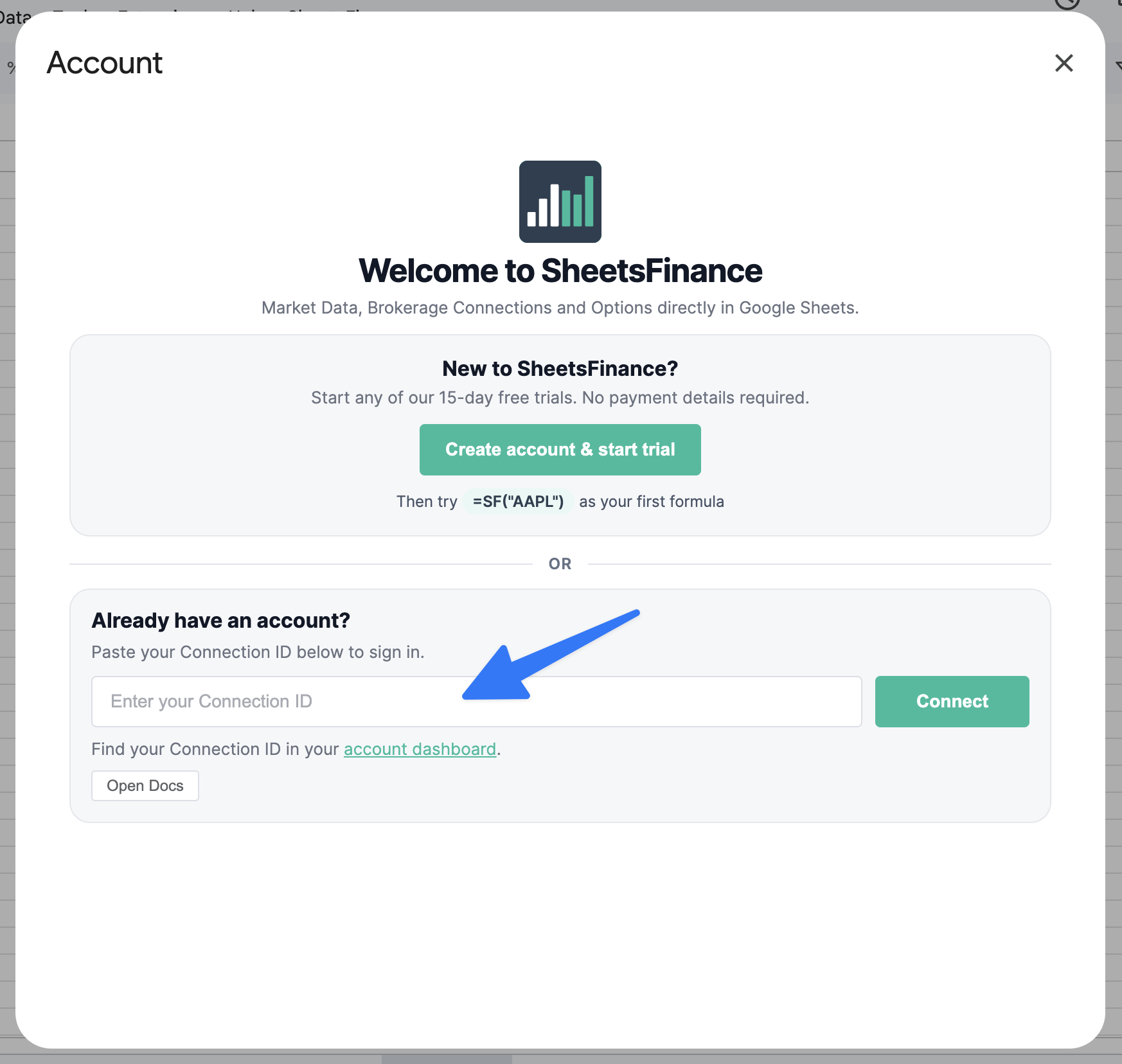
Connection IDinto the Google Sheets Account modal and click Connect
If you try to use SheetsFinance before connecting, your sheet may show a message like this:
Connect to SheetsFinance from the menu: Extensions > SheetsFinance > Account
The message is expected for web-created accounts and means you just need to connect from Extensions > SheetsFinance > Account.
You can copy your Connection ID from your dashboard and then enter it into the Google Sheets Account modal here:
Option 3 - From Google Workspace Marketplace
Go to the Google Workspace Marketplace and install our add-on. Here is a direct link:
When installing via the Google Workspace Marketplace it is recommended that you open one of the add-on's menu items after install to ensure it has installed correctly.
Okay it's installed but where is it?
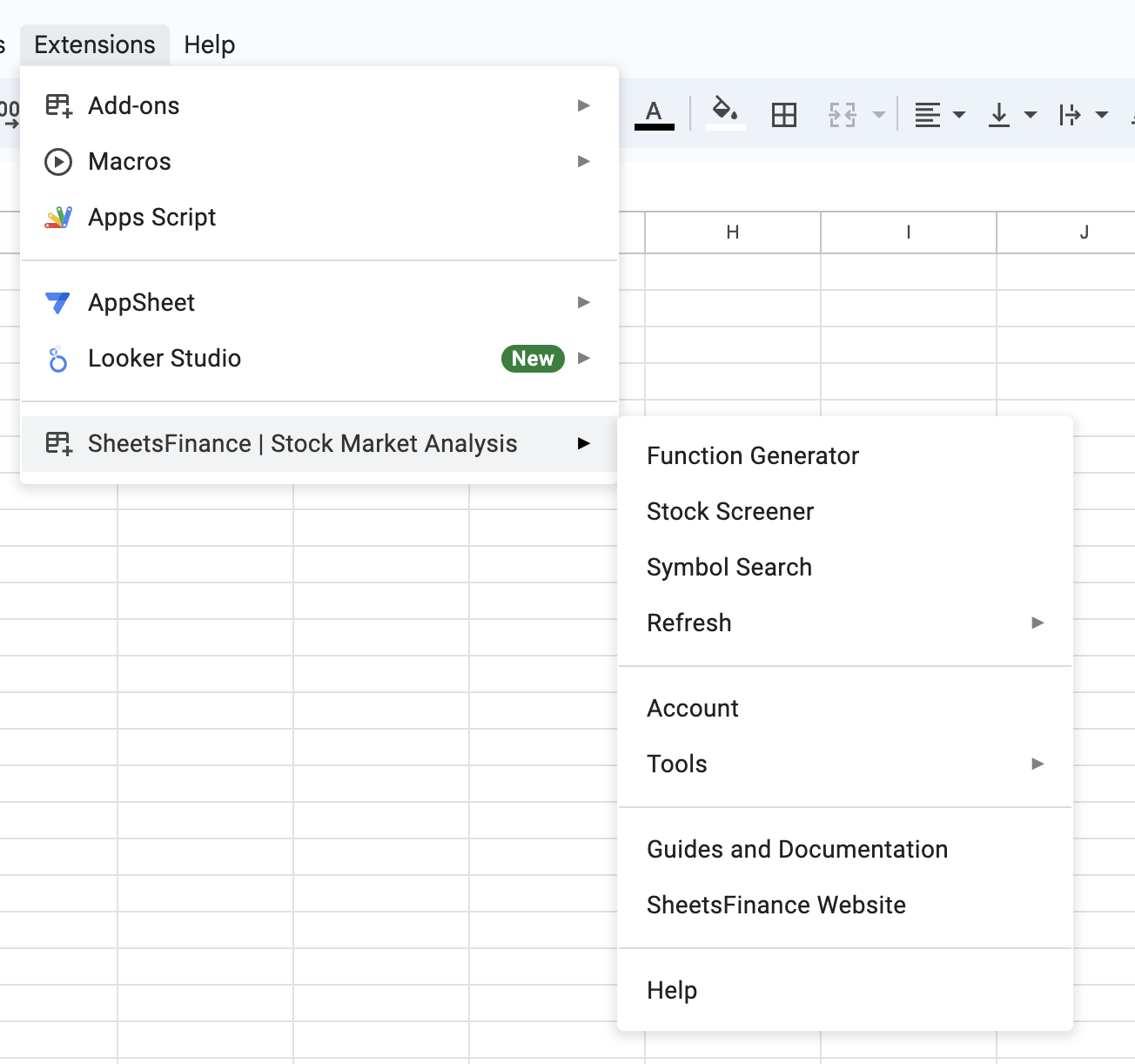
Once you've installed the add-on it will be available under the Extensions menu as shown below:
Note: If you register from inside Google Sheets, your free trial starts as part of that in-app registration flow. If you create your account on the website first, you can then connect Google Sheets using your Connection ID.
Recover access if permissions or connection break
If SheetsFinance stops responding in Google Sheets, the fastest fix is usually to reinstall the add-on and reconnect.
In Google Sheets, open
Extensions > Add-ons > Manage add-ons, find the SheetsFinance card, and uninstall it.Refresh the Google Sheets page.
Reinstall the add-on via
Extensions > Add-ons > Get add-ons.At the Google permissions screen, click Select all to grant every requested permission.
Open
Extensions > SheetsFinance > Accountand reconnect using your Connection ID.
If you need to switch to a different Google account, paste your Connection ID into the Account modal under the new account. The latest connection replaces the previous one.
For detailed steps, see Fix Google Sheets permission and connection issues.