
Microsoft Excel
Open a new Excel Workbook and click Add-ins from the Home ribbon menu.
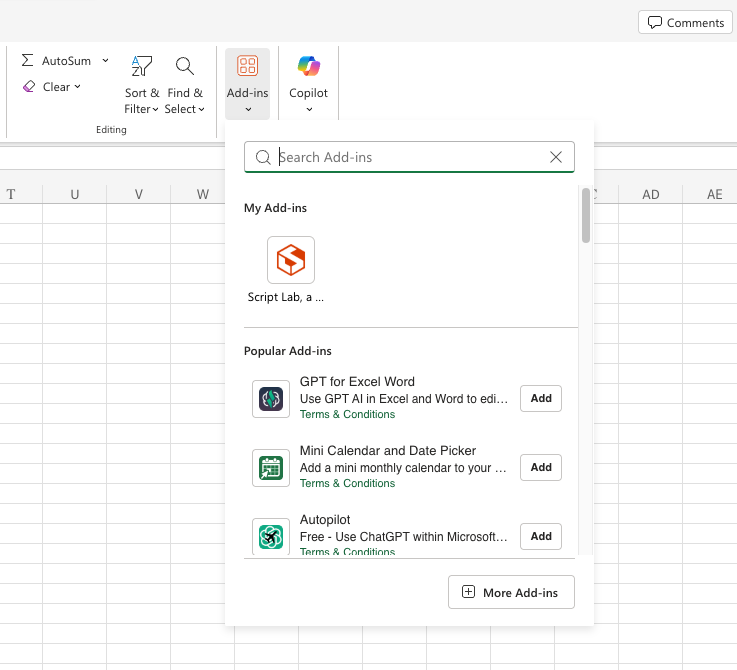
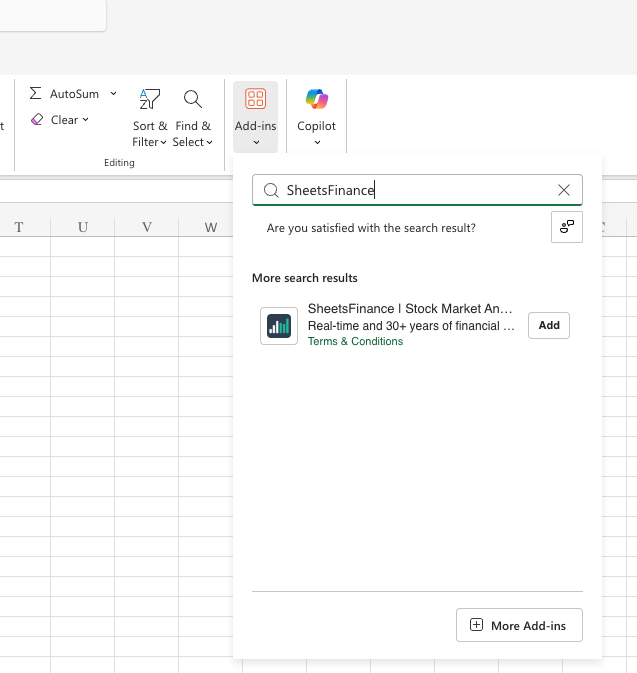
Either directly search for SheetsFinance or click More Add-ins which will open the Office Add-ins store in a pop-up modal. You can then search for SheetsFinance there. Then click Add to install.
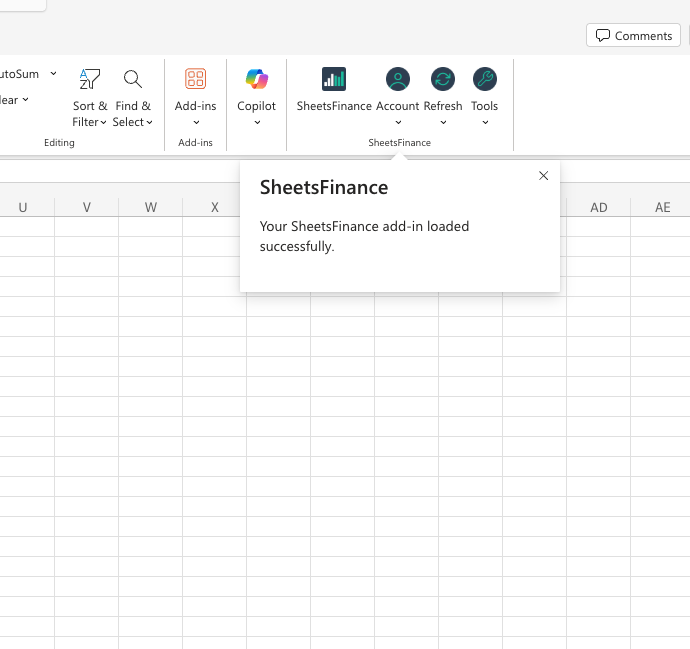
Once installed successfully you'll see SheetsFinance buttons appear in your Home ribbon and a success message.
Excel currently supports
Connection IDconnecting only. Open the account/connect view, copy your Connection ID from your SheetsFinance Account Dashboard, and paste it into Excel to connect.
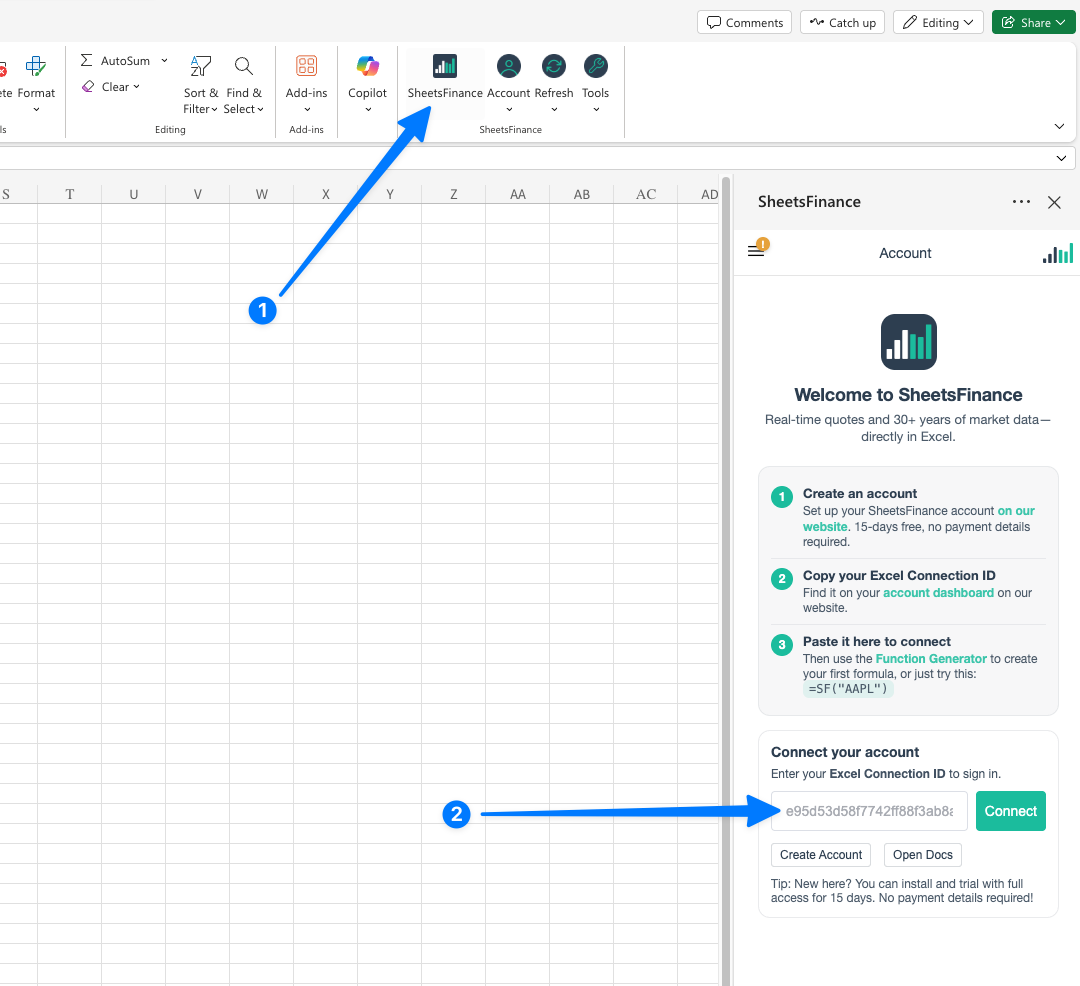
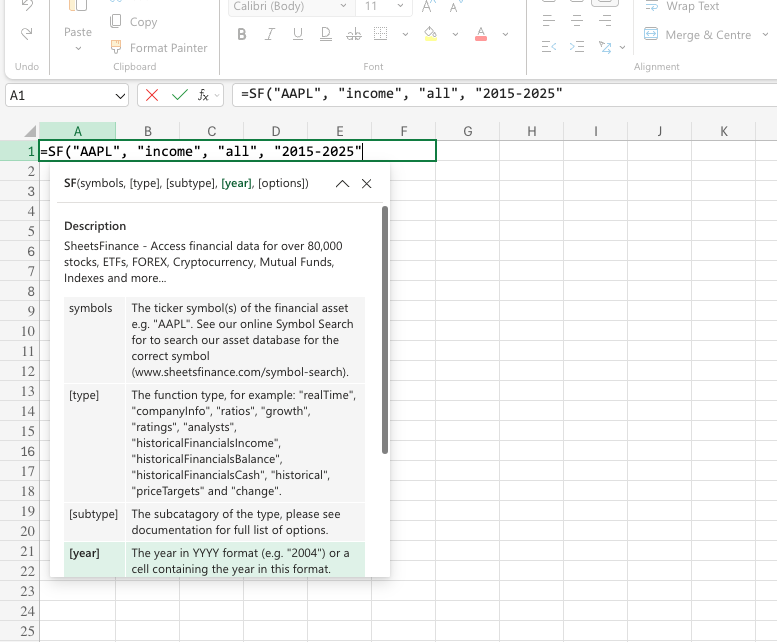
You're all set! You can now start using SheetsFinance in Excel.
Was this helpful?
Was this helpful?