Income Statement
Update (November 2025): You are viewing the latest income statement documentation, to view legacy documentation for the deprecated income statement function see Historical Financial Statements (Deprecated).
You can access 30+ years of standardised annual, quarterly and TTM (trailing twelve months) income statements using the SF() function with the base type of "income".
=SF(symbol, type, metrics, year(s), options)symbol- The ticker symbol of the financial asset (e.g.,"AAPL"). You can use our Symbol Search to find the correct ticker symbol.type- The type of financial statement you want to pull in. See Type section below for more information.metrics- The specific line items of the income statement you are after. See Metrics section below for full list.year(s)- The year, range of years or date for the financial statement. See Year(s) section for more information.options- Additional options for adjusting the way data is called or formatted. See Options section below for more information.
Type
The type is made up of the base statement type and then followed by a suffix which indicates quarterly or TTM data. For the income statement, the base statement type is: "income". The suffixes that can be used with the base statement type are:
No suffix - Annual data (e.g.
"income"for annual income statement)"Q"- All quarterly data (e.g."incomeQ"for all quarterly income statements)"QX"- Specific quarter data (e.g.,Q1,Q2,Q3,Q4) (e.g."incomeQ2"for all Q2 income statements)"TTM"- Trailing Twelve Months data (e.g."incomeTTM"for trailing twelve months income statement) - see TTM Data section below for more information.
Metrics
The available metrics/line items for the income statement are as follows:
All (
"all")Date (
"date")Reported Currency (
"reportedCurrency")CIK (
"cik")Filing Date (
"filingDate")Accepted Date (
"acceptedDate")Fiscal Year (
"fiscalYear")Period (
"period")Revenue (
"revenue")Cost Of Revenue (
"costOfRevenue")Gross Profit (
"grossProfit")Research And Development Expenses (
"researchAndDevelopmentExpenses")General And Administrative Expenses (
"generalAndAdministrativeExpenses")Selling And Marketing Expenses (
"sellingAndMarketingExpenses")Selling General And Administrative Expenses (
"sellingGeneralAndAdministrativeExpenses")Other Expenses (
"otherExpenses")Operating Expenses (
"operatingExpenses")Cost And Expenses (
"costAndExpenses")Net Interest Income (
"netInterestIncome")Interest Income (
"interestIncome")Interest Expense (
"interestExpense")Depreciation And Amortization (
"depreciationAndAmortization")EBITDA (
"ebitda")EBIT (
"ebit")Non-Operating Income Excluding Interest (
"nonOperatingIncomeExcludingInterest")Operating Income (
"operatingIncome")Total Other Income Expenses Net (
"totalOtherIncomeExpensesNet")Income Before Tax (
"incomeBeforeTax")Income Tax Expense (
"incomeTaxExpense")Net Income From Continuing Operations (
"netIncomeFromContinuingOperations")Net Income From Discontinued Operations (
"netIncomeFromDiscontinuedOperations")Other Adjustments To Net Income (
"otherAdjustmentsToNetIncome")Net Income (
"netIncome")Net Income Deductions (
"netIncomeDeductions")Bottom Line Net Income (
"bottomLineNetIncome")EPS (
"eps")EPS Diluted (
"epsDiluted")Weighted Average Shares (
"weightedAverageShsOut")Weighted Average Shares Diluted (
"weightedAverageShsOutDil")
Year(s)
The year(s) parameter can be specified in the following ways:
Specific Year - e.g.,
"2020"to return the income statement for that year.Range of Years - e.g.,
"2015-2020"to return multiple years of income statements in one call."ttm"- to return the most recent TTM income statement.Specific date - e.g.,
"2020-06-30". This can be used in two cases: (1) when generating a historical TTM statement as of that date (e.g."incomeTTM"), or (2) when pulling quarterly data (withQorQXsuffix) in conjunction with the"calYear"option to return the specific quarter that includes that date. In the second case you can also enter only a year and month, for example"2020-03"to return the quarter for March 2020.
Tip: Omitting the year(s) parameter will default to the most recent annual/quarterly statement, for example, if you call SF("AAPL", "income") without specifying the year(s), it will return the most recent annual income statement, or SF("AAPL", "incomeQ") will return the most recent quarterly income statement.
Options
Tip: Options can be chained using the & operator, e.g. "NH&NLI".
The options parameter can be used to adjust the way data is accessed and/or formatted. The available options are:
"NH"- No header rows."NLI"- No line item labels."-"- Reverse the year ordering (i.e., change the output to most recent to oldest)."calYear"- When pulling data search our database by calendar year instead of fiscal year. By default, SheetsFinance returns financial statements based on the company's fiscal year. For example, if a company's fiscal year ends in June, the 2020 fiscal year statement would cover the period from July 2019 to June 2020. By using the"calYear"option, you can request financial statements based on the calendar year (January to December). This is particularly useful for comparing companies with different fiscal years or for aligning financial data with calendar-year-based analyses."pad"- When pulling quarterly data, this option will pad the output with empty columns for years or quarters that do not exist. For example, if you pull quarterly income statements for a company that has IPOd recently, using this option will ensure that all quarters from the earliest to the latest are represented in the output, even if some quarters have no data. This helps maintain a consistent structure in your data when comparing multiple companies or time periods.
TTM Data
There are a few ways to access TTM (trailing twelve months) data using the SF() function:
Using the base statement type with
"ttm"in theyear(s)parameter for the latest TTM data. For example,SF("AAPL", "income", "all", "ttm")will return the most recent TTM income statement.Using the
TTMsuffix in thetypeparameter for historical TTM data as of a specific date. You can then enter:A year or range of years to get TTM statements per quarter for those years. For example,
SF("AAPL", "incomeTTM", "all", "2018-2020")will return TTM income statements for each quarter from 2018 to 2020.A specific date to get the TTM statement as of that date. For example,
SF("AAPL", "incomeTTM", "all", "2020-06-30")will return the TTM income statement as of June 30, 2020. Or, more generally, a year and month, e.g.,"2020-03"to get the TTM statement as of March 2020.
Examples
Example 1: Most recent annual income statement with all metrics (MRY)
=SF("AAPL", "income")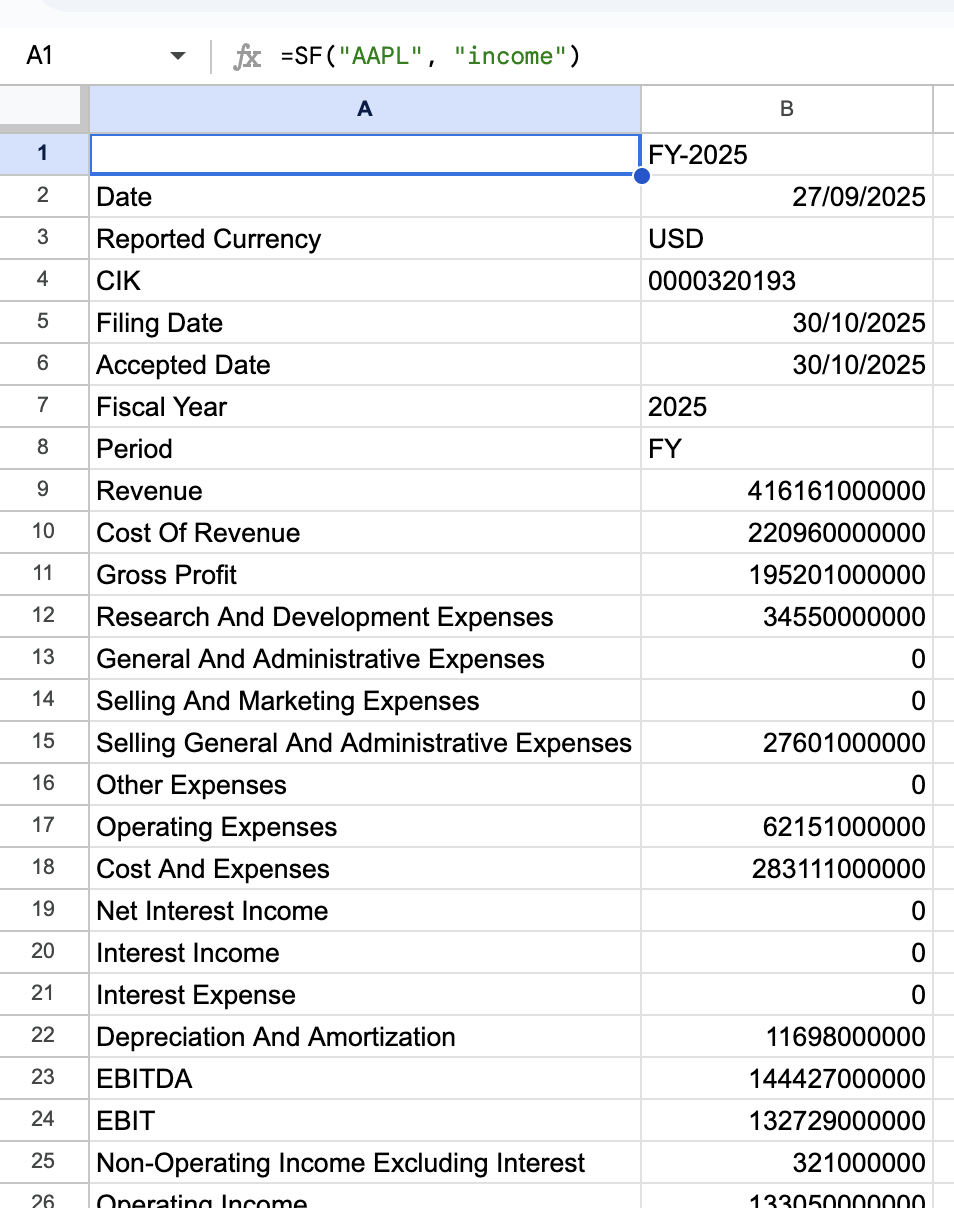
Example 2: Most recent quarterly income statement (MRQ) with specific metrics
=SF("AAPL", "incomeQ", "revenue&netIncome&eps")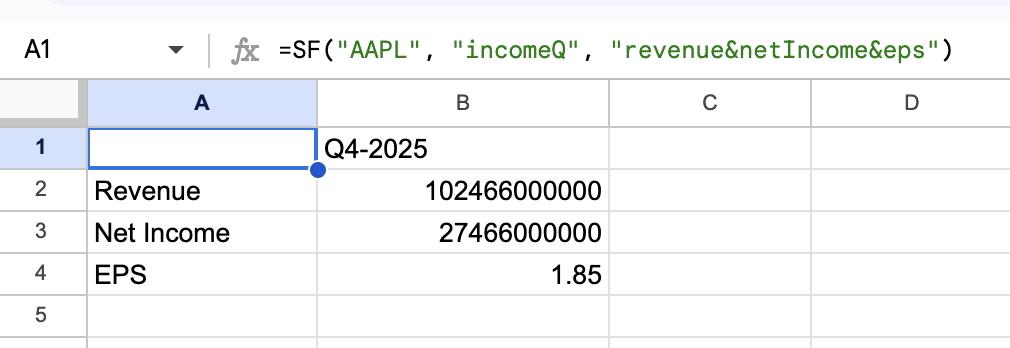
Example 3: A range of annual income statements (YoY) for specific years, all metrics, no header option
Tip: The "NH" option removes the header row of dates/years from the output.
=SF("AAPL", "income", "all", "2019-2024", "NH")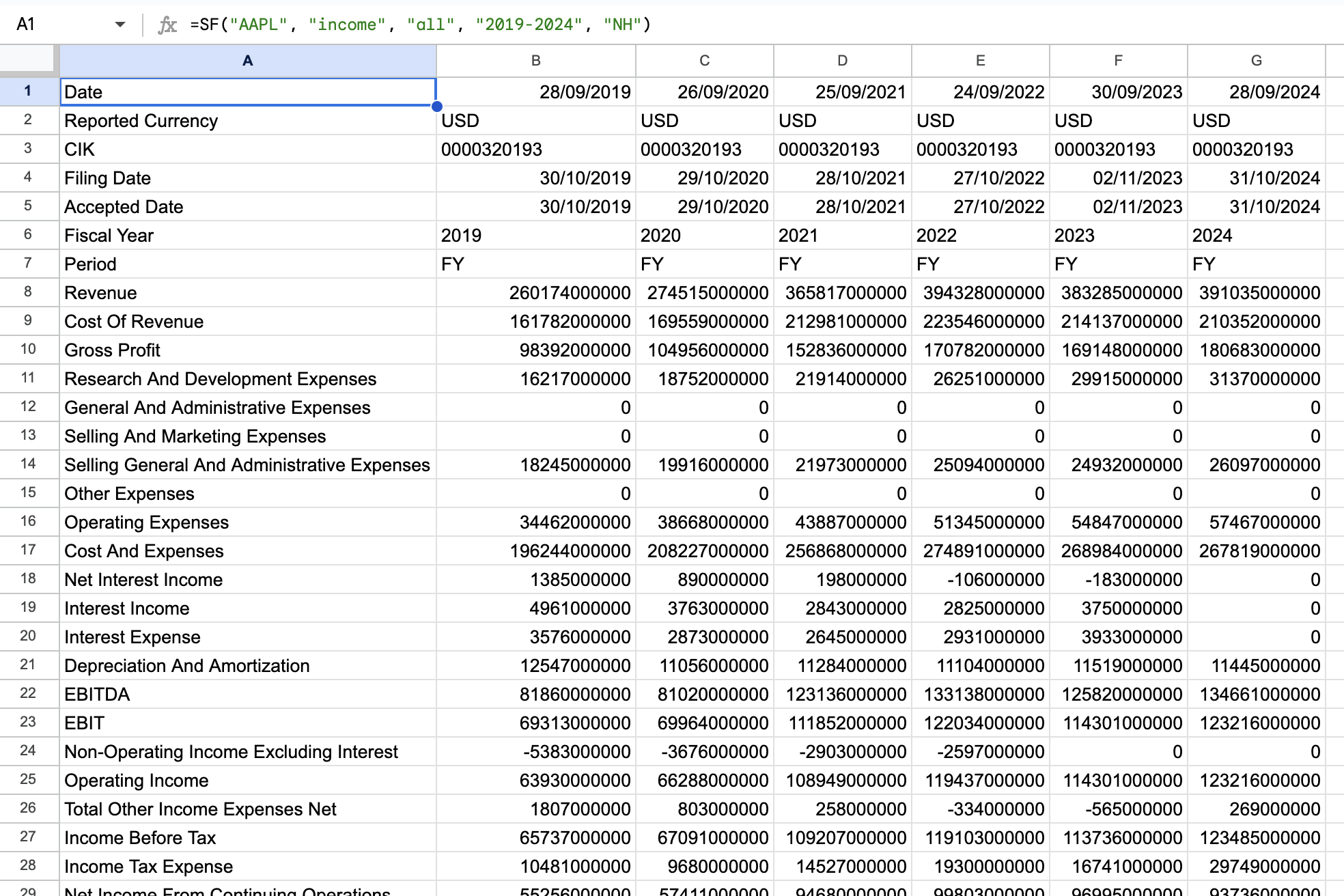
Example 4: All quarterly income statements for a specific financial year
=SF("AAPL", "incomeQ", "all", "2024")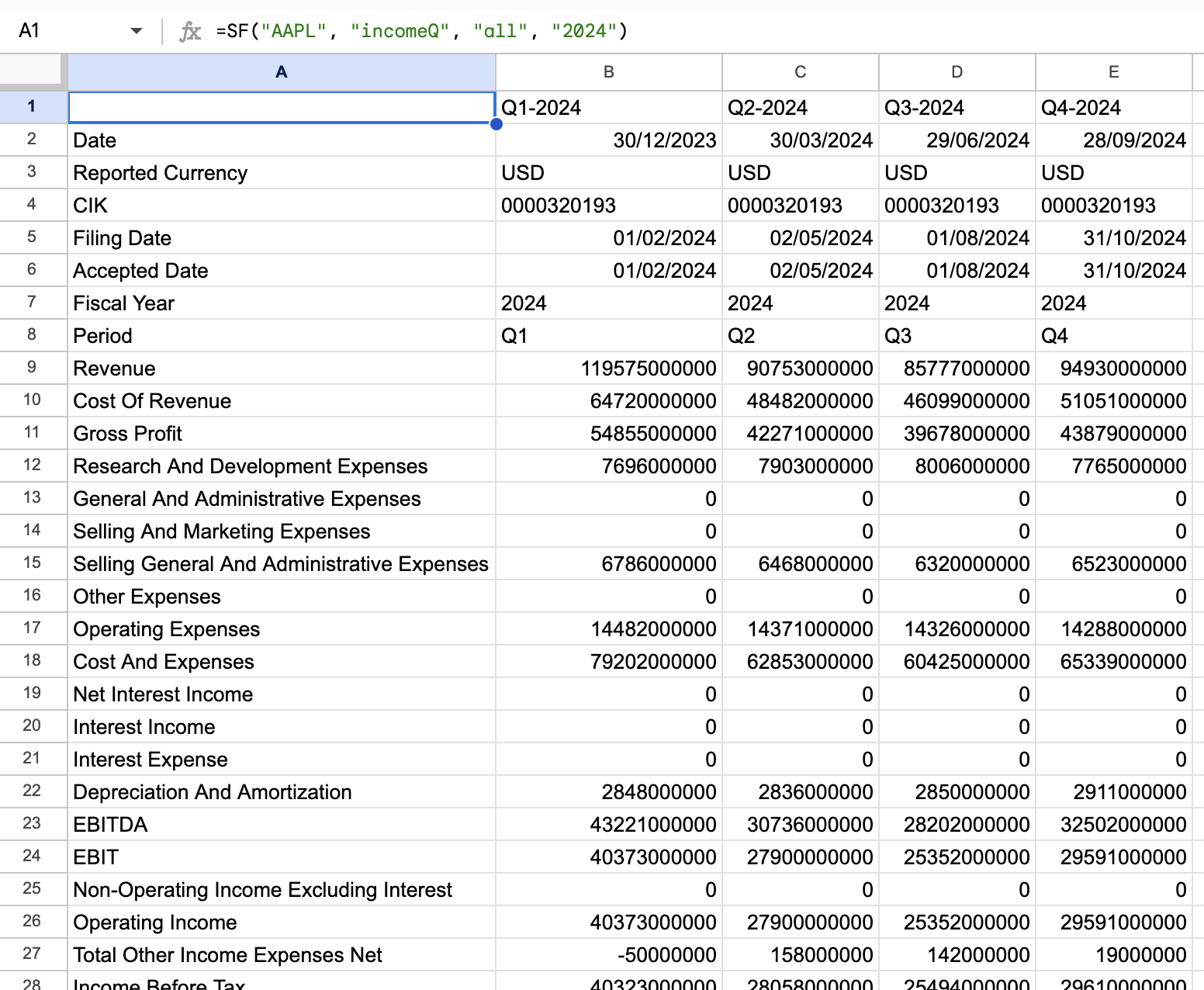
Example 5: TTM income statement as of a specific date with selected metrics
=SF("AAPL", "incomeTTM", "revenue&netIncome", "2020-06-30")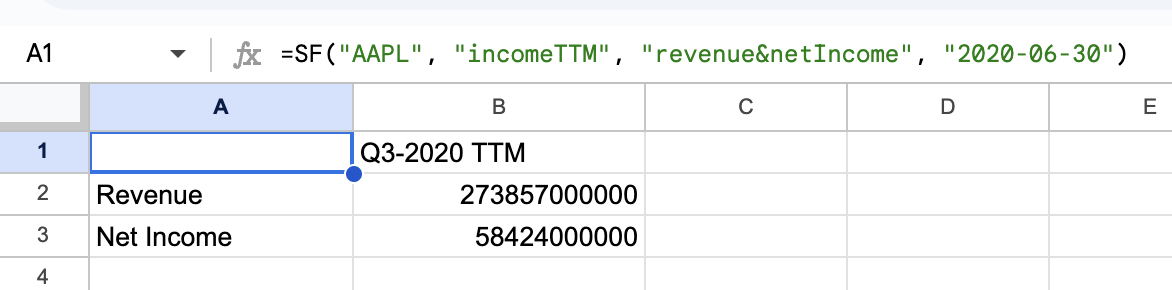
Example 6: Quarterly income statements for a specific quarter across multiple years (QoQ), output reversed (most recent first)
Tip: The "-" option reverses the year ordering to most recent to oldest.
=SF("AAPL", "incomeQ2", "all", "2018-2020", "-")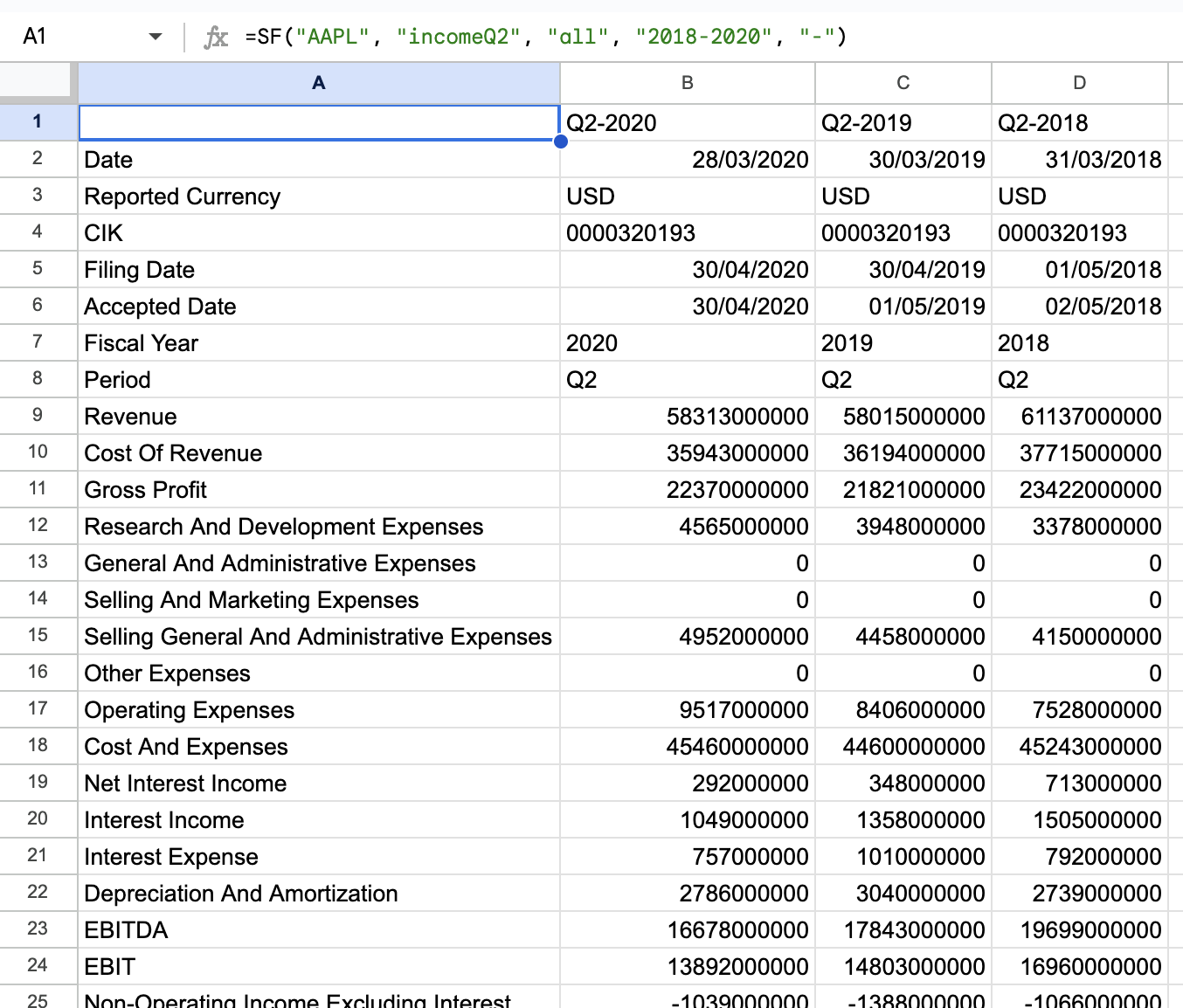
Example 7: Quarterly statements for specific calendar years instead of fiscal years
Tip: The calYear option adjusts the search to calendar years instead of fiscal years.
=SF("AAPL", "incomeQ", "all", "2019-2020", "calYear")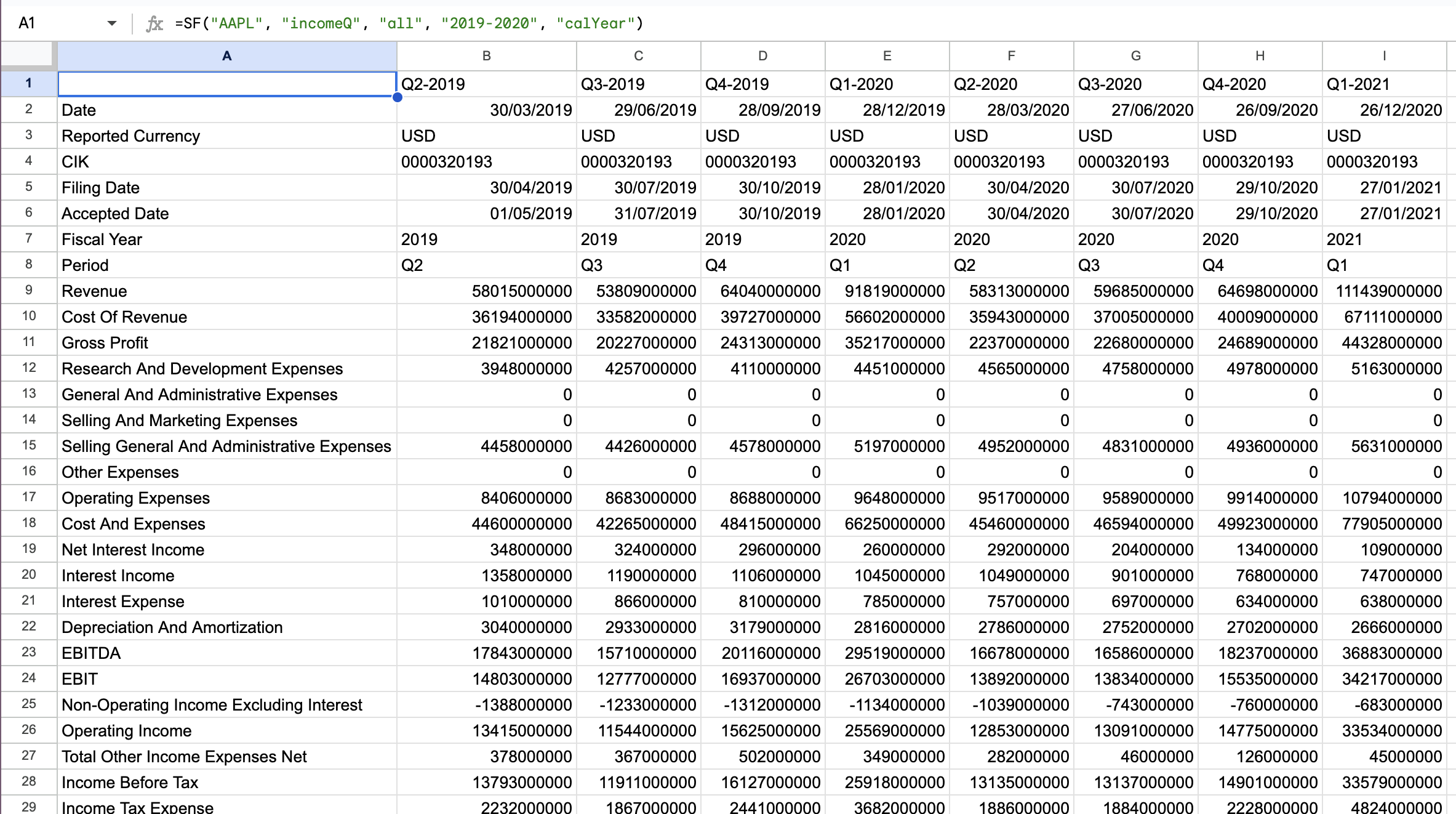
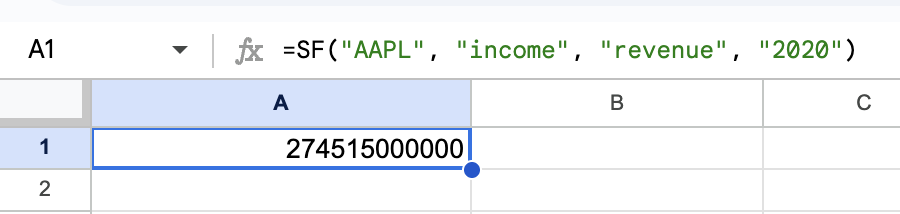
Example 8: Single value - annual revenue for 2020
Tip: When a value is fully specified with a single metric and year, no header or line item labels are included in the output.
=SF("AAPL", "income", "revenue", "2020")