Refresh
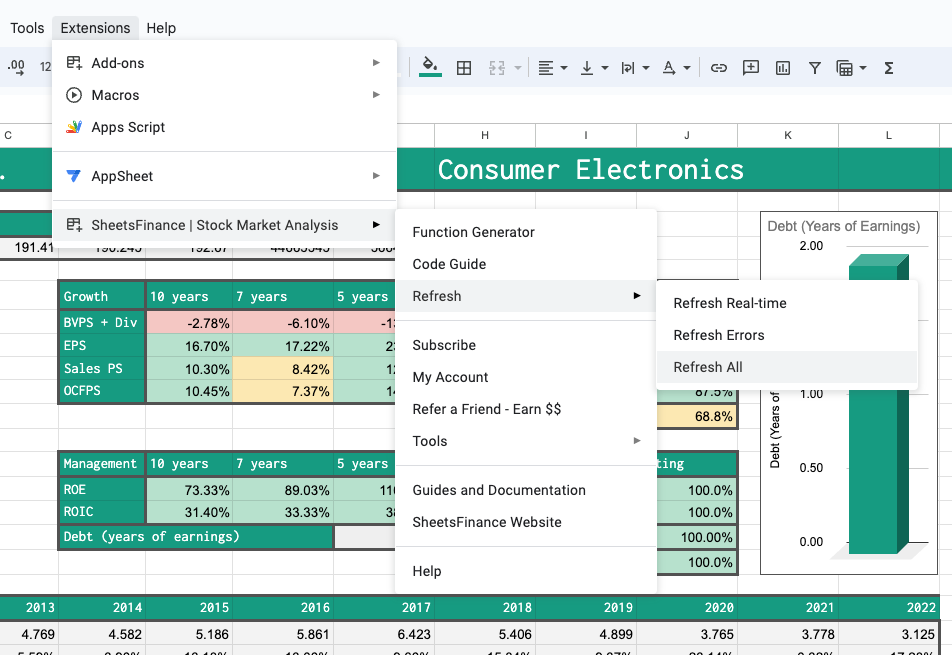
SheetsFinance provides three ways to keep your financial data fresh which are all available from the Refresh sub-menu within Google Sheets and Excel
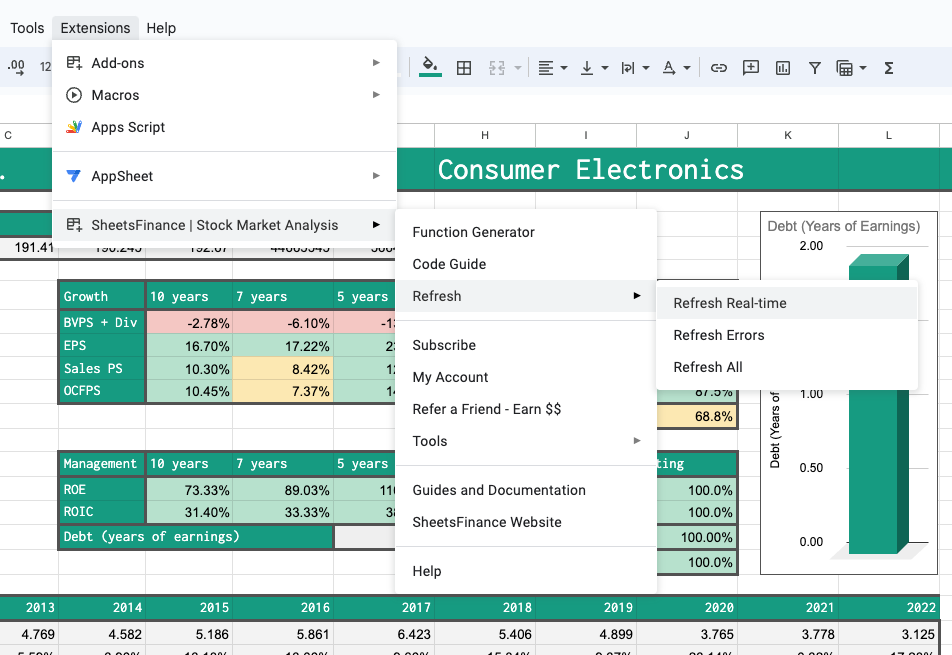
Refresh Real-time - only real-time data is refreshed
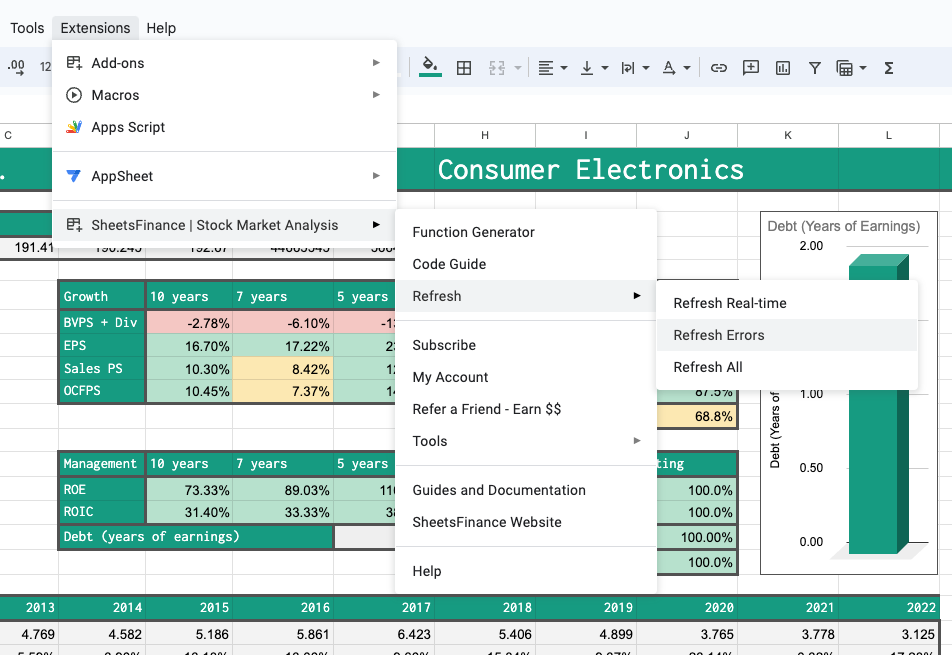
Refresh Errors - only sheet errors are refreshed
Refresh All - all data is refreshed
The options are explained further below.
Refresh Real-time
Available from the Extensions menu, clicking Refresh Real-time will force re-load all the real-time functions in your active sheet. This is the best option when you just need to bypass any local caching and require the latest real-time data. Clicking Refresh Real-time will selectively refresh only real-time functions and pull in the latest financial information from our external data service.
Refresh Errors
Available from the Extensions menu, clicking Refresh Errors will force re-load all the #ERROR! and #N/A functions in your active sheet. This is particularly handy if you hit any pesky Google errors such as a rate limit or _'too many simultaneous scripts running for this account_ errors. By clicking Refresh Errors` you can retry only the data that errored out.
Refresh All
Clicking Refresh All under the Refresh menu will force reload all recognized SheetsFinance formulas on the active sheet. Be aware that if you have a lot of active functions this action could take a moment to load. This should only be used if the you're experiencing unexpected loading errors and you'd like a "turn it off and on from the power" solution.