
Find a template
Browse ready-made SheetsFinance templates on the Templates page or in the Template Library inside the add-on, then add the one you want to your spreadsheet. Every template works in Google Sheets, and most are also available for Excel.
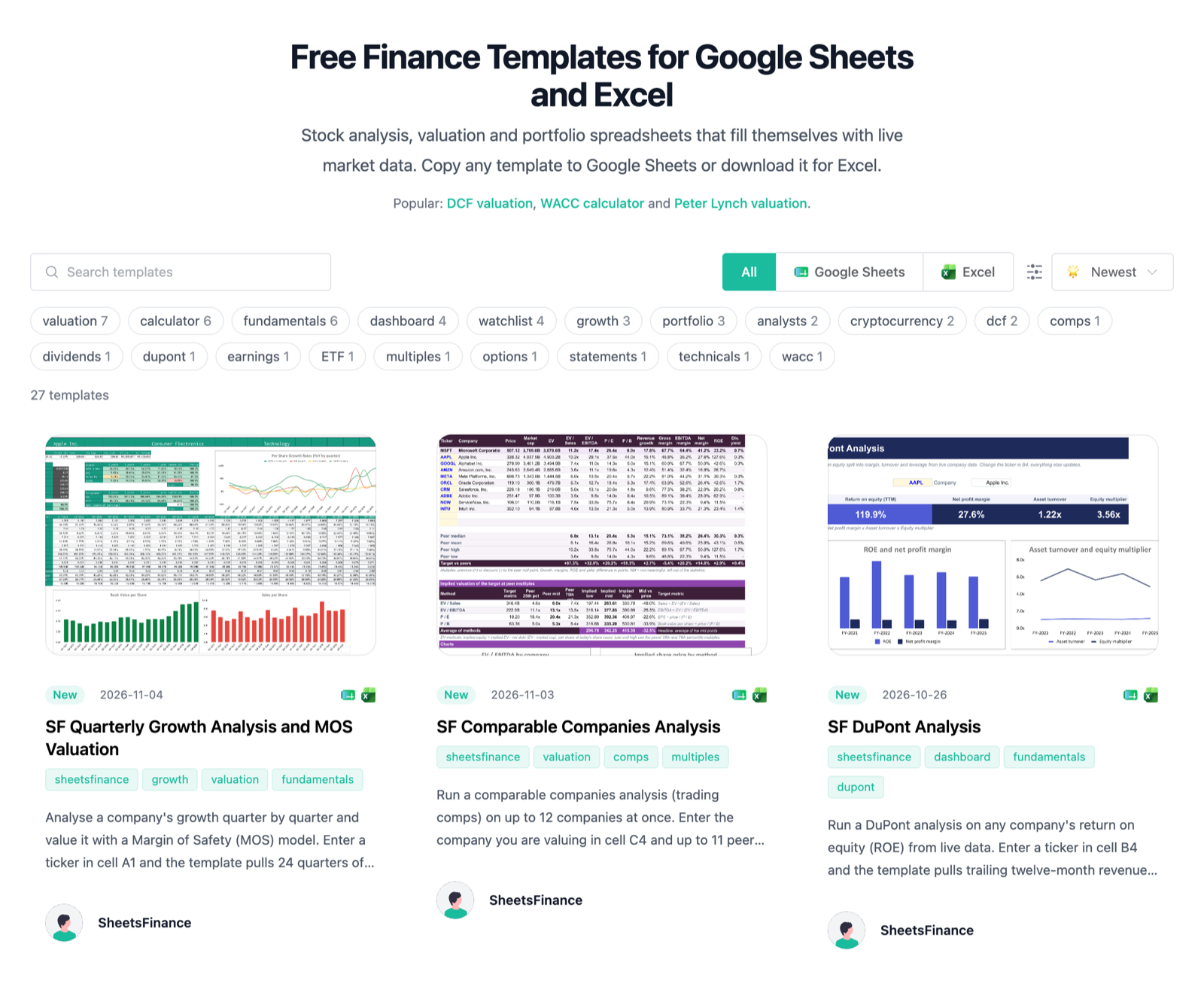
Where to find templates
The same templates appear in three places, so pick the one closest to where you work.
Templates page: the full library on sheetsfinance.com, with a page for each template that describes what it does and how to set it up.
Google Sheets add-on: open Extensions > SheetsFinance > Template Library to browse templates in a sidebar next to your spreadsheet.
Excel add-in: open the SheetsFinance task pane from the Home ribbon and choose Template Library from its menu. Only templates with an Excel version are listed.
Search and filter
Search matches a template's name, description and tags, and every word you type must match. In the add-ons, search also matches the SheetsFinance functions a template uses, and Filters narrows the list by tag or changes the sort order.
Tags: select one or more tags to see templates that have any of them, such as valuation or dividends. The number next to a tag shows how many templates carry it.
Sort: show the newest templates first, or the most downloaded.
Platform: on the Templates page, choose Google Sheets or Excel to see only templates for that platform.
Templates added in the last two weeks show a New badge.
Add a template to your spreadsheet
How you get a template depends on your spreadsheet app.
Google Sheets: add the template's tabs to the spreadsheet you have open, or make your own copy of it. See Add a template in Google Sheets.
Excel: open the template as a new workbook, add its sheets to the workbook you have open, or download the file. See Add a template in Excel.
To point a template at another company, see Change a template's ticker and inputs.
Templates are free. The data in them loads through your SheetsFinance account, so connect the add-on first, and check that your plan includes the data a template uses (the options templates need an Options plan).
Templates are provided as-is for informational purposes only and do not constitute financial advice.